
How to Make a Welcome Message in Discord
To make a welcome message in Discord, decide what new members see. Discord new member messages can be Discord's built-in greeting or a Discord welcome message you write. Voinly's Discord welcome bot lets you write the message, attach a welcome card with the member's avatar, DM new members and say goodbye when they leave, for free. Copy-paste examples are below.
Updated
Quick steps
The short version of a Discord welcome message. Examples and the full settings are further down. Welcome messages sit with the leveling guide, the Discord embed builder and the member tracker on the Voinly homepage. After the greeting, a Discord giveaway bot, a voting bot for Discord, temp voice rooms and an invite tracker bot are the usual next modules.
- Open Welcome messages and turn the module on.
- Keep Send a welcome message on and pick a Channel.
- Write the Message with
{user}, or start from a template. - Optional: Attach a welcome card, DM new members and Send a leave message.
- Press "Send test to my DMs", or run
/welcome test.
Option 1: Discord's built-in welcome message
Discord can greet new members on its own. Open Server Settings → Overview, pick a System Messages Channel and turn on the setting that sends a random welcome message when someone joins. Members then see a line like "Welcome, Mika. We hope you brought pizza." with a button to wave hello.
It costs nothing and needs no bot, but you can't change the text, add your rules channel, show the member count or send a DM. If you want any of that, use a bot, and turn Discord's own greeting off so new members aren't welcomed twice.
Option 2: a custom welcome message with Voinly
Voinly's Welcome messages module covers everything a welcome bot usually does:
- A message in a channel, with text, embeds and buttons, which can delete itself after a while.
- A welcome card: an image with the member's avatar and name on one of five backgrounds or your own.
- A DM to the new member, for example with the rules or how to get roles.
- A leave message when someone leaves, is kicked or is banned.
- A message when members get or lose roles you pick, such as a new moderator.
Placeholders you can use
Placeholders are replaced when the message is sent. The editor's Variables button lists all of them, and the preview fills in sample values.
| Placeholder | Shows |
|---|---|
{user} | A mention of the new member |
{user.name} | Their username |
{user.display_name} | Their display name or nickname |
{user.avatar} | Their avatar URL, for an embed thumbnail |
{user.created_at} | When their Discord account was created |
{server} | The server name |
{server.member_count} | The member count, such as 1284 |
{server.member_count_ordinal} | The member count as an ordinal, such as 1284th |
{timestamp} | A Discord timestamp that shows each reader's own time |
The same picker also offers {user.mention}, {user.tag}, {user.id}, {user.joined_at}, {server.name}, {server.id}, {server.icon}, {server.owner}, {server.boosts}, {date} and {time}. The welcome message, the DM and the leave message can use the user, server and time placeholders. They cannot use channel placeholders. A role announcement can also use {role}, {role.mention} and {role.id}.
To see the number of people in the server without waiting for someone to join, follow the member count channel guide.
Discord welcome message examples
Paste any of these into the Message field. They are the starters and the starting text Voinly already ships, so the placeholders are the ones the welcome message actually fills in.
| Example | Paste this |
|---|---|
| Short hello | Welcome to **{server}**, {user}! |
| Point to rules | Hi {user}, welcome to **{server}**! Please read the rules first, then come say hi. |
| With roles | Welcome {user}! You're member number {count} of **{server}**. Pick your roles to see the channels you care about. |
| Starting channel line | Hey {user}, welcome to **{server}**! |
| Starting embed title | Welcome to {server}! |
| Starting embed description | You're our **{server.member_count_ordinal}** member. Read the rules and say hi. |
| Starting DM | Welcome to **{server}**, {user.name}! Make sure to read the rules. |
| Starting leave message | **{user.name}** left the server. We're now {server.member_count} members. |
| Welcome card title | Welcome, {user.name}! |
| Welcome card subtitle | Member #{server.member_count} |
Short hello, Point to rules and With roles are the three buttons under Start from a template. {count} on With roles is the member count. The same number is {server.member_count} in the variable list. The Discord welcome bot page is the short version of this setup.
Welcome embed examples
A welcome message can be plain text, an embed, or both. The lines above are what Voinly starts with. On the channel message, the thumbnail is {user.avatar} and the timestamp is turned on. The welcome card is a separate image, not an embed. When someone gains a role you picked, the starting line is {user} is now **{role}**. Congratulations!. {role} works on that message only.
Point the text at the next step. A rules channel, the verification guide, the reaction roles guide, or a hub from the join-to-create guide are all things you can name in the message. Level rewards, if you use them, are in the leveling guide. The card itself is built in the Discord embed builder. Who invited the new member is a separate message: the Discord invite tracker.
Discord permissions to check
In the welcome channel, Voinly needs to view the channel, send messages and embed links, and Attach Files if you use the welcome card, because the card is uploaded as an image. If the channel is read-only for members, that's fine: only Voinly needs to post there.
What makes a good welcome message
Keep it short and give one next step. New members skim, so a greeting that mentions them, says where the rules are and how to get roles does more than a wall of text. For example: Hey {user}, welcome to {server}! Read #rules, then grab your roles in #roles.
Put longer information in the DM or in a rules channel, and use the welcome card for the visual part. If your server is busy, set the greeting to delete itself after a few hours so the channel doesn't fill up with old welcomes.
Voinly can also post a message when members get or lose roles you choose, in the Role assignment message section, for example to congratulate a new moderator or a member who reached a rank. If that role never arrives, the roles guide covers role order. Roles given on join are Join roles, not this message.
Welcome message troubleshooting
- Nothing is posted. Send a welcome message has to be on, and a Channel has to be chosen. Voinly needs to view that channel, send messages and embed links.
- Save says the message is empty. Add text or an embed, or attach a welcome card. An empty message with the switch on is refused.
- The message shows the placeholder instead of a name. Spell it exactly, with curly braces and no spaces, such as
{user.name}. Pick it from the Variables list. - New members see two greetings. Discord's own greeting is still on. Turn it off in Server Settings → Overview under System Messages Channel.
- The DM never arrives. Members who block DMs from server members do not get it. The channel message still posts.
- The welcome card is missing. Turn on Attach a welcome card and give Voinly Attach Files in the channel. A custom background has to be an image link that starts with https://.
How to make a welcome message with Voinly
-
Open Welcome messages
In the dashboard, open Welcome messages and press "Turn on Welcome messages". Nothing is posted in your server until the module is on.
-
Pick the welcome channel
In the Welcome message section, keep Send a welcome message on and choose the Channel. A warning stays at the top until you do, so you can't forget it.
-
Write the message
Start from a template (Short hello, Point to rules or With roles) or write your own Message with text, an embed and buttons. Use placeholders such as
{user}and{server.member_count_ordinal}, and point new members to your rules channel. Set Delete after if you want the greeting to disappear after a while to keep the channel clean. -
Add a welcome card
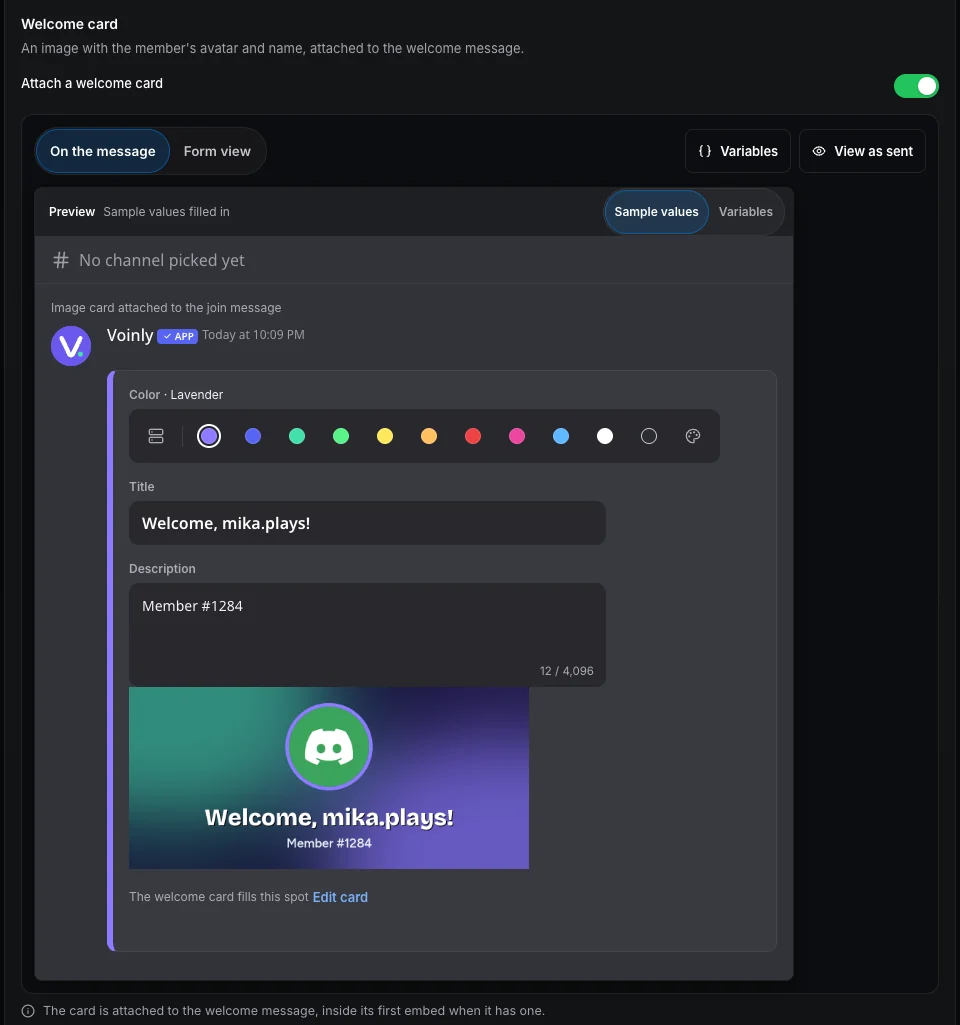
Under "More settings", turn on Attach a welcome card. Choose a Background (Aurora, Midnight, Sunset, Forest, Monochrome or Custom image), or paste a Background image URL that starts with https:// (1100 × 500 looks best). Edit the Title, Subtitle and Accent color; the preview redraws the card as you type.
-
Send a DM and a leave message
Turn on DM new members under Direct message to send a private note, for example how to pick roles, or ask them to save a birthday with the Discord birthday bot (birthday bot guide). Members who block DMs from server members simply don't get it. Under Leave message, turn on Send a leave message and pick its Channel; it covers leaves, kicks and bans. Ignore bots is on by default, so bots are never greeted.
-
Test it on yourself
Press "Send test to my DMs" on the page, or run
/welcome testin your server. Voinly sends the saved welcome message, and the join DM if it's on, to you only, so you can check how it looks without waiting for someone to join.
Welcome message guide commands
| Command | What it does | Who can use it |
|---|---|---|
/welcome test | Send the welcome message, and the join DM if it's on, to yourself to check how they look. | Manage Server |
Frequently asked questions
What are some Discord welcome message examples?
Welcome to **{server}**, {user}!. Point to rules asks them to read the rules, and With roles uses {count} for the member number. The starting channel message is Hey {user}, welcome to **{server}**! plus an embed. The Discord welcome bot page is the short setup.Nothing is posted when someone joins
The message shows {user} instead of a name
{user.name}. Pick it from the Variables list in the editor to be sure.Why do new members get two welcome messages?
Can I give new members a role when they join?
Can the welcome message be an embed?
Welcome to {server}!, a description with {server.member_count_ordinal}, and a thumbnail of {user.avatar}. Edit those in the Message field, or build a reusable card in the Discord embed builder. The embed guide covers each part.Is it free?
How do I make a welcome message in Discord?
{user}, or start from Short hello, Point to rules or With roles. Press "Send test to my DMs", or run /welcome test. Welcome messages are free.What is a Discord welcome message?
What is a welcome bot?
Can I use Discord's own welcome message?
Add Voinly to your server
Every Voinly module is free. The only paid extras are Custom bot and extra AI moderation scans (see pricing). Add it to Discord and set it up from the dashboard.
Add to Discord