
A free temp voice bot for join-to-create rooms
Voinly is a free temp voice bot for Discord. With its join-to-create voice channels, a member joins one channel and gets a voice room of their own. They name it, lock it, hide it or let friends in, and the room disappears when everyone leaves. Your channel list stays short, and nobody has to ask a moderator for a private room.
TempVoice-style temporary voice channels
These rooms are TempVoice-style temporary voice channels. A member joins a hub, Voinly creates a temp voice room and moves them in, and the room is deleted when everyone leaves. The owner can rename it, set a user limit, lock, hide, permit, reject, kick or transfer it, from the button panel or with /voice. The join-to-create guide compares this with TempVoice. Pair the rooms with a welcome message, an invite tracker bot, a Discord giveaway bot or a voting bot for Discord.
Quick steps
- Create an empty voice channel, such as Create a room.
- Give Voinly Manage Channels, Manage Roles, Move Members and Connect in that category.
- Open Temporary voice, press New join channel and pick the hub.
- Choose the owner controls, then join the hub to test the room.
Up to 10 join-to-create hubs
A hub is an ordinary voice channel, often called "Create a room". When someone joins it, Voinly creates temporary voice channels for them and moves them in. You can have up to 10 hubs, so a gaming server can run one hub for duos, one for squads and one for chill rooms, each with its own settings.
- Category. Where new rooms are created, or the same category as the hub.
- Name template. For example
{user}'s room.{user}is the member's display name,{username}their username and{count}the room number. - User limit from 0 (no limit) to 99.
- Bitrate from 8 to 384 kbps, capped at what your server's boost level allows.
- Private by default. New rooms start locked, so only the owner, staff and people they permit can join.
- A built-in text channel that only people in the room can see, removed with the room, with the room commands pinned in it.
Owners control their own room
The member who created a room owns it. You choose which controls owners can use: rename, user limit, lock, hide, permit, reject, kick and transfer. Permit lets someone in even when the room is locked or hidden. Reject blocks a member and disconnects them. Transfer hands the room to someone else inside it. Server managers can always use every control.
If you want, owners can also get extra Discord permissions in their room: edit channel, move, mute or deafen members, or priority speaker.
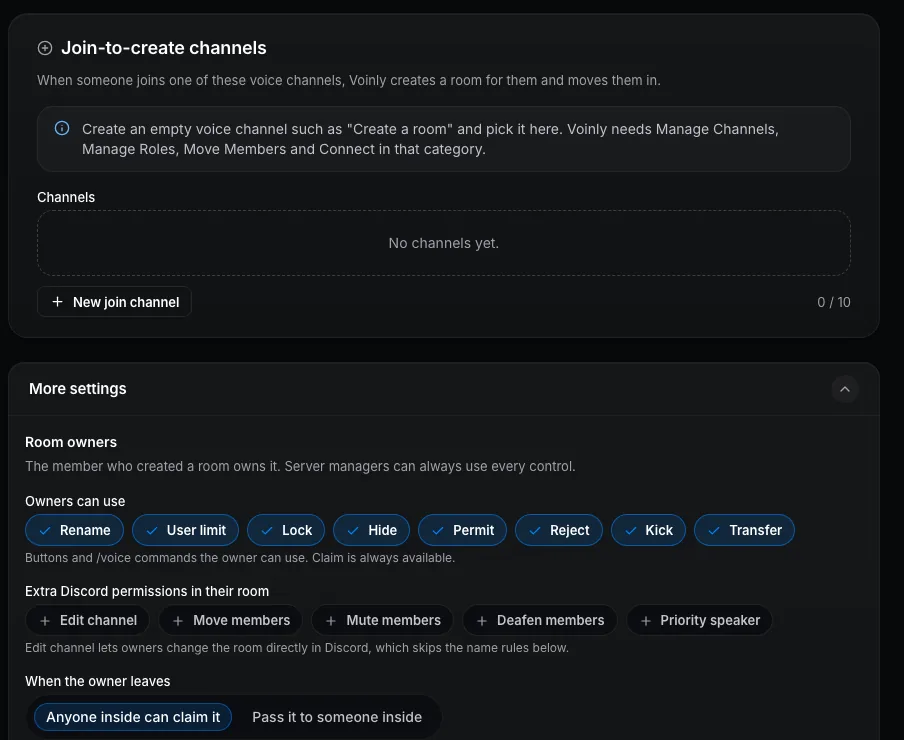
When the owner leaves
Rooms don't die with their owner. Choose whether anyone still inside can claim the room with /voice claim, or whether Voinly passes it straight to someone inside. When the last person leaves, the room is deleted at once or after a delay you set.
Limits that keep temporary voice channels tidy
- Rooms per member from 1 to 5. A member who already owns that many is moved to their room instead.
- A wait between new rooms, so nobody spams the hub.
- A delete delay for empty rooms, up to an hour.
- Longest room name and blocked words that owners can't use in names, matched without regard to case.
- Discord's rename limit. Discord lets a channel be renamed only twice every 10 minutes. Voinly tells owners when they can rename again instead of leaving them waiting.
Set up the temp voice bot in 4 steps
-
Create the hub channel
In Discord, create an empty voice channel such as Create a room, in the category where rooms should appear.
-
Give Voinly the permissions it needs
Voinly needs Manage Channels, Manage Roles, Move Members and Connect in that category, so it can create rooms, set who can join and move members in.
-
Add the hub in the dashboard
Open the Voinly dashboard and go to Temporary voice. Under Join-to-create channels, press New join channel, pick your hub and set the room name, user limit, bitrate and privacy.
-
Choose owner controls and limits
Under Room owners, Control panel and Limits, pick what owners can do and how many rooms each member may have. Then join the hub to test it. Our join-to-create voice channel guide walks through each setting.
Temp voice bot commands
| Command | What it does | Who can use it |
|---|---|---|
/voice rename <name> | Rename your room. | Everyone |
/voice limit <number> | Set how many people can join your room (0 for no limit). | Everyone |
/voice lock | Stop new people from joining your room. | Everyone |
/voice unlock | Let everyone join your room again. | Everyone |
/voice hide | Hide your room from the channel list. | Everyone |
/voice show | Make your room visible in the channel list again. | Everyone |
/voice permit <member> | Let someone see and join your room, even when it's locked or hidden. | Everyone |
/voice reject <member> | Block someone from your room and disconnect them. | Everyone |
/voice kick <member> | Disconnect someone from your room. | Everyone |
/voice transfer <member> | Give your room to someone else in it. | Everyone |
/voice claim | Take over a room after its owner left. | Everyone |
/voice panel | Post the control panel again in your room's chat. | Everyone |
Frequently asked questions
Is the temp voice bot free?
What happens to a room when everyone leaves?
Can members make their room private?
Why can't my members rename their room right away?
Can a room have its own text chat?
What are TempVoice-style temporary voice channels?
How do I set up temp voice?
Which /voice commands can the owner use?
/voice rename, /voice limit, /voice lock, /voice unlock, /voice hide, /voice show, /voice permit, /voice reject, /voice kick and /voice transfer. /voice claim is always available, and /voice panel posts the button panel again. You choose which of the eight owner controls are on.Add Voinly to your server
Every Voinly module is free. The only paid extras are Custom bot and extra AI moderation scans (see pricing). Add it to Discord and set it up from the dashboard.
Add to Discord