
Discord Temporary Voice Channels: a Temp Voice Setup
Discord temporary voice channels, also called temp voice, are join to create rooms: a member joins a hub, usually named Create a room, a tempvoice bot makes a new voice channel, moves them in, and deletes the room once it is empty. Discord has no built-in setting for this, so you need a bot. This guide covers why servers use them, how to set them up with Voinly, the permissions and owner controls, common problems, and how this compares with TempVoice. If you are still building the server, start with the Discord server setup guide.
Updated
Quick steps
The short version of temp voice. Permissions, owner controls and the TempVoice comparison are below. A new member's greeting is the welcome message guide. Who invited them is the invite tracker. A prize draw is the Discord giveaway bot guide, and a question for the server is the voting bot for Discord.
- Create a voice channel such as Create a room.
- Grant Manage Channels, Manage Roles, Move Members and Connect in that category.
- Under Temporary voice, add the hub and set the room name, user limit and privacy.
- Turn the module on and join the hub to test it.
TempVoice-style temporary voice channels
TempVoice-style temporary voice channels are the same idea as a Creator Channel: one hub stays empty, and each arrival gets a room that disappears later. Voinly's temp voice module is that tempvoice bot inside the rest of the bot. The comparison further down is what each project publishes, not a ranking.
What a temp voice channel is
You keep one, or a few, empty hub channels. When a member joins a hub, the bot creates a new voice channel, often named after that member, moves them in as the owner, and deletes the room when the last person leaves, immediately or after a delay you set. The hub stays empty for the next person, so the channel list stays short.
TempVoice calls that hub a Creator Channel. Voinly calls it a Join-to-create channel or hub. The idea is the same: one channel that never fills up, because each arrival gets a room of their own.
Why use temporary voice channels Discord does not include
Fixed rooms tend to fail in one of two ways: too few, so everyone piles into General, or too many, so the sidebar fills with empty Squad channels. Temporary rooms appear when a group needs a space, then vanish. Each room has an owner who can name it, cap it or lock it, so a duo, a study group or a staff huddle gets privacy without asking a moderator.
A gaming server can run more than one hub, for example one for duos, one for squads and one for hangout rooms, each with its own name, limit and privacy. Voinly allows up to 10 hubs.
How a tempvoice bot compares with TempVoice
Voinly's temporary voice module is a tempvoice bot inside an all-in-one bot. TempVoice is a well-known bot built for this job: it watches a Creator Channel, creates a temporary channel when someone joins, and deletes it when everyone leaves. Owners manage the room with /voice commands or an interface message of buttons. The table is not a ranking. It only compares what each project publishes.
| Compared | Voinly | TempVoice |
|---|---|---|
| What it is | An all-in-one bot. Temporary voice is one module, next to moderation, levels and tickets. | A bot focused on temporary voice channels. |
| Price | All 10 hubs and owner controls are included. The only paid extras are Custom bot and extra AI moderation scans. | A free plan and TempVoice Premium. |
| Hubs | Up to 10 join-to-create hubs. | The free plan includes 2 Creator Channels. Premium unlocks unlimited Creator Channels. |
| Controls in the room | Optional control panel with buttons in the room's own text chat, plus /voice commands. | Interface messages. TempVoice's in-voice-chat interface is a Premium setting, with a grandfather exception for some older creator channels. |
| Empty rooms | Deleted at once, or after a delay of up to an hour. | Deleted once everyone leaves. |
Both bots are bound by the same Discord limits: 500 channels per server, 50 per category, and only two renames per channel every 10 minutes. TempVoice's own docs also describe a rolling limit of 2,000 new channels per 24 hours. If new rooms stop appearing, check whether the category or the server is full.
TempVoice's docs also describe waiting rooms, channel passwords and fallback categories when a category is full. Voinly's public pages do not include those. That is a difference in what is published, not a verdict on either bot.
Create the hub and grant permissions
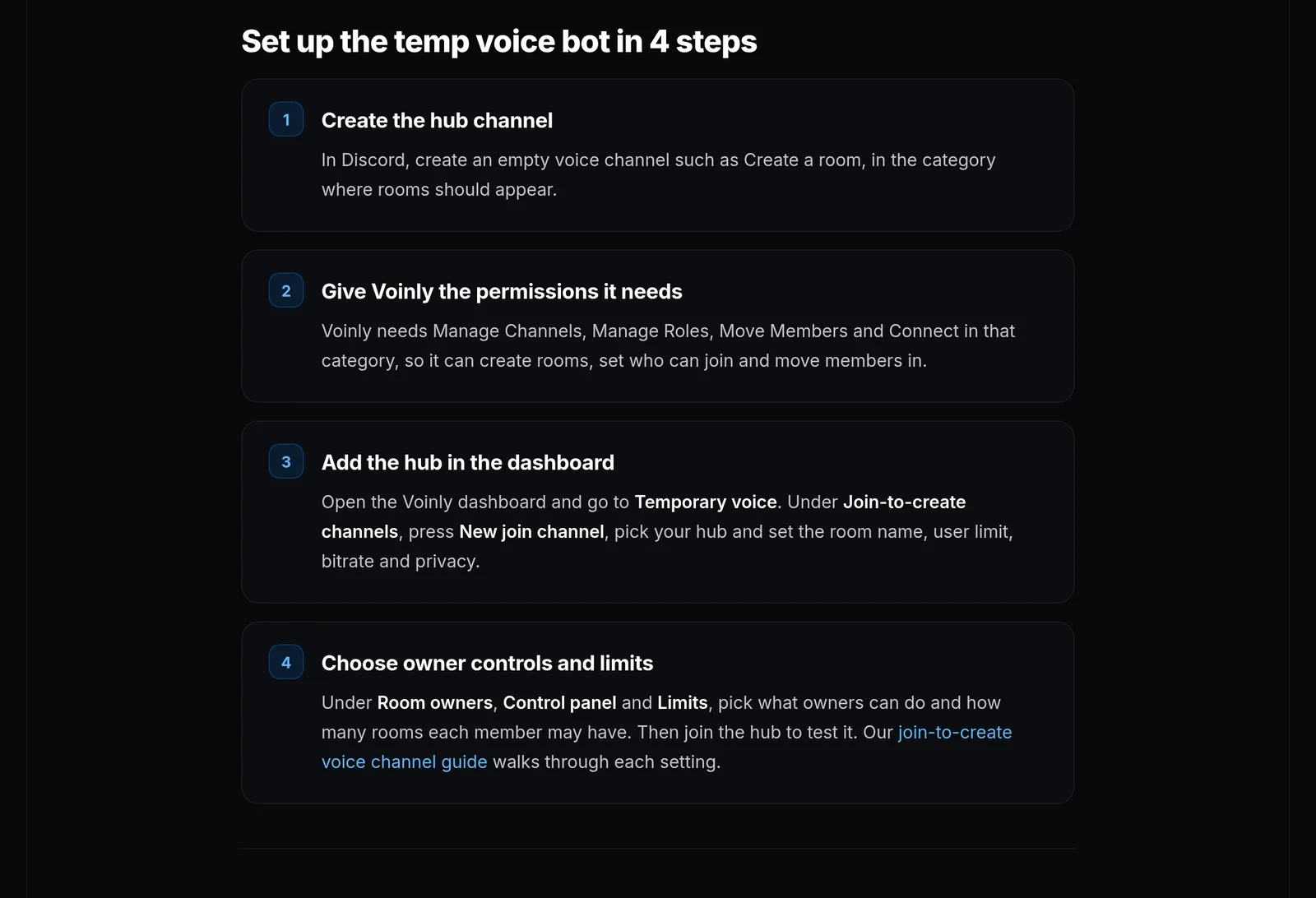
In Discord, create a category such as Voice rooms, and inside it an empty voice channel named something like Create a room. That is the hub. New rooms are created in that category unless you pick a different one under Create rooms in.
Voinly needs these permissions in that category, not only on the hub, because new rooms inherit it:
- Manage Channels, so it can create and delete rooms.
- Manage Roles, so it can give owners their controls and lock or hide rooms.
- Move Members, so it can move someone from the hub into their new room.
- Connect, so it can enter the voice channel to do that work.
Voinly's invite never asks for Administrator. If you use a verified or Member role, it must be able to see and connect to the hub.
Add the hub in the dashboard
Open the dashboard and go to Temporary voice under Server management. It stays off until you turn it on.
- Under Join-to-create channels, press New join channel. Pick your hub as the Join-to-create channel, and optionally a different category under Create rooms in. You can add up to 10 hubs, each with its own settings.
- Set the Room name. Use
{user}for the member's display name,{username}for their username and{count}for the room number, for example{user}'s room. - Set a User limit from 0 (no limit) to 99, and a Bitrate from 8 to 384 kbps, capped at what your server's boost level allows.
- Decide on privacy and chat. Private by default starts rooms locked, so only the owner, staff and people they permit can join. Give each room a text channel adds a chat only people in the room can see, removed with the room. Pin the room commands in it helps owners find the controls.
- Under Room owners, Control panel and Limits, pick what owners can do. Press Turn on Temporary voice, join the hub, and you should be moved into your new room.
Owner controls and the control panel
The member who created a room owns it. Under Owners can use you choose which of eight controls they get: Rename, User limit, Lock, Hide, Permit, Reject, Kick and Transfer. Claim is always available, and server managers can always use every control.
Lock and unlock stop new people joining, or let them in again. Hide and show take the room off the channel list, or put it back. Permit lets someone in even when the room is locked or hidden. Reject blocks a member and disconnects them. Kick disconnects without the longer block. Transfer hands the room to someone already inside.
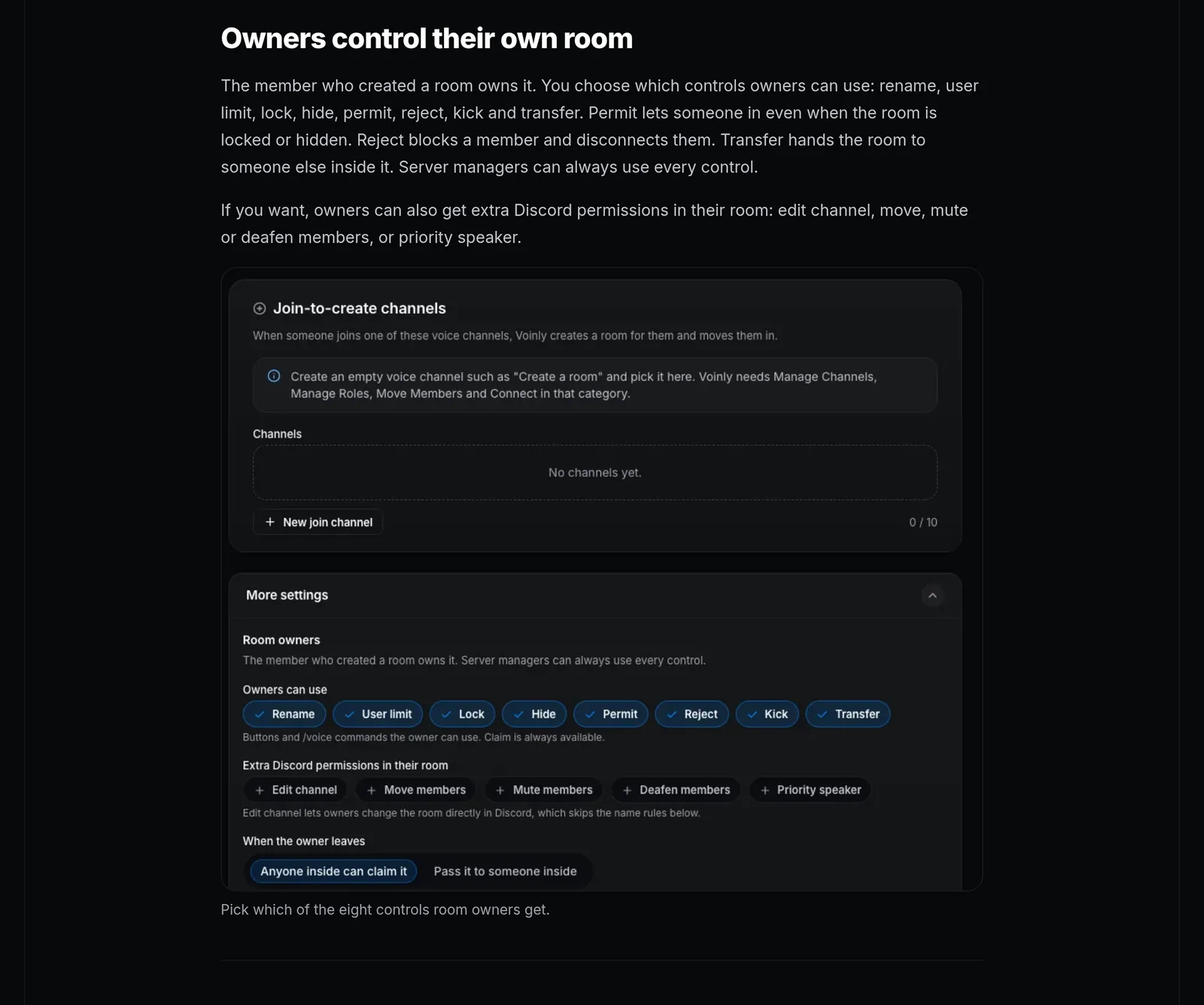
Owners use these from a control panel or with /voice commands. With Post a control panel in new rooms on, Voinly posts a message with buttons in the room's text chat, showing the owner, the status and the user limit. You can edit the Panel text in the dashboard. {user} mentions the owner. If someone deletes the panel, /voice panel posts it again.
Owners can get extra permissions in their room under Extra Discord permissions in their room: Edit channel, Move members, Mute members, Deafen members or Priority speaker. Edit channel lets owners change the room directly in Discord, which skips your name rules.
Rooms do not disappear just because the owner left. Under When the owner leaves, choose Anyone inside can claim it (with /voice claim) or Pass it to someone inside. The room is deleted only when the last person leaves, immediately or after a delay of up to an hour.
Limits that keep rooms tidy
Under Limits you can set how many rooms one member may own, how fast new ones appear, how long empty rooms last, and what names are allowed.
- Rooms per member from 1 to 5. Anyone who already owns that many is moved to their existing room.
- Wait between new rooms, so people cannot spam the hub.
- Delete empty rooms after a delay from 0 (immediate) up to an hour.
- Longest room name and Blocked words in room names, matched without regard to case.
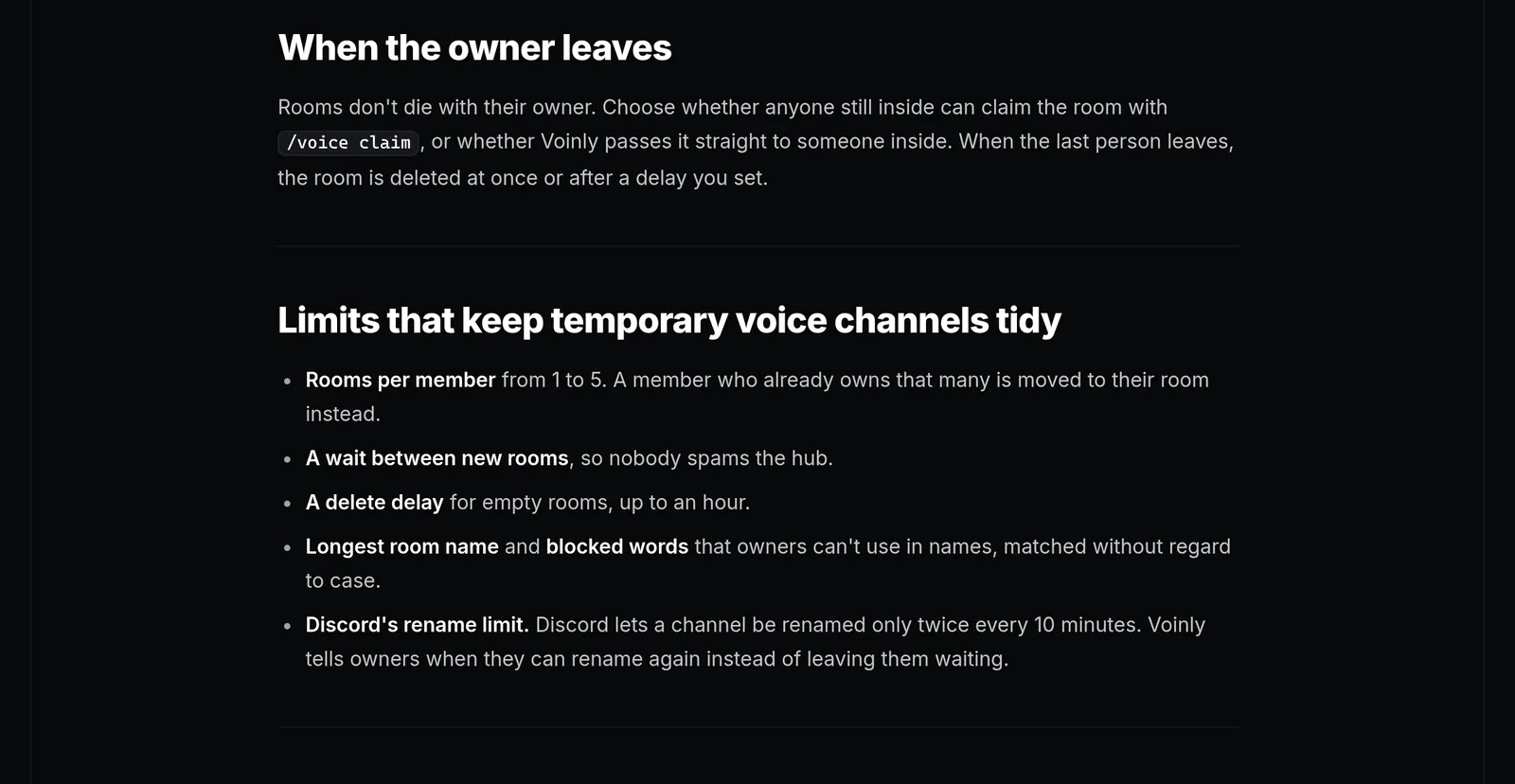
Discord lets a channel be renamed only twice every 10 minutes. Voinly tells the owner when they can rename again.
Voice XP in temporary rooms
Temporary rooms are ordinary voice channels once they exist. If you also turn on Levels and Earn XP in voice channels, time in those rooms counts like time in any other voice channel: 10 XP per minute by default. Voinly skips the AFK channel and members who are deafened or alone. No-XP roles and channels still apply, and a role or channel boost can raise or lower what they earn. Setup: how to set up leveling in Discord.
Common problems
Joining the hub does nothing
Check that Temporary voice is on and that Voinly has Manage Channels and Move Members in the category. The Active rooms tab shows the rooms Voinly is managing.
Members cannot see or join the hub
If only staff can connect, or a verified role cannot see the category, members will never trigger a room. Allow that role to view and connect, and check category overrides.
A room will not lock or hide
Those controls use permission overwrites, so Voinly needs Manage Roles in the category.
A rename does not happen right away
Discord allows only two renames per channel every 10 minutes. Voinly tells the owner when the next rename is possible.
New rooms stop appearing
The module may be off, a permission may be missing, or the category or server may be full. Discord allows 50 channels in a category and 500 in a server. Delete unused channels, or create rooms in another category, then test again.
A command or button does nothing for the owner
Confirm that control is enabled under Owners can use. Claim is always available. The other eight can be turned off. If the panel was deleted, run /voice panel.
Temp voice commands
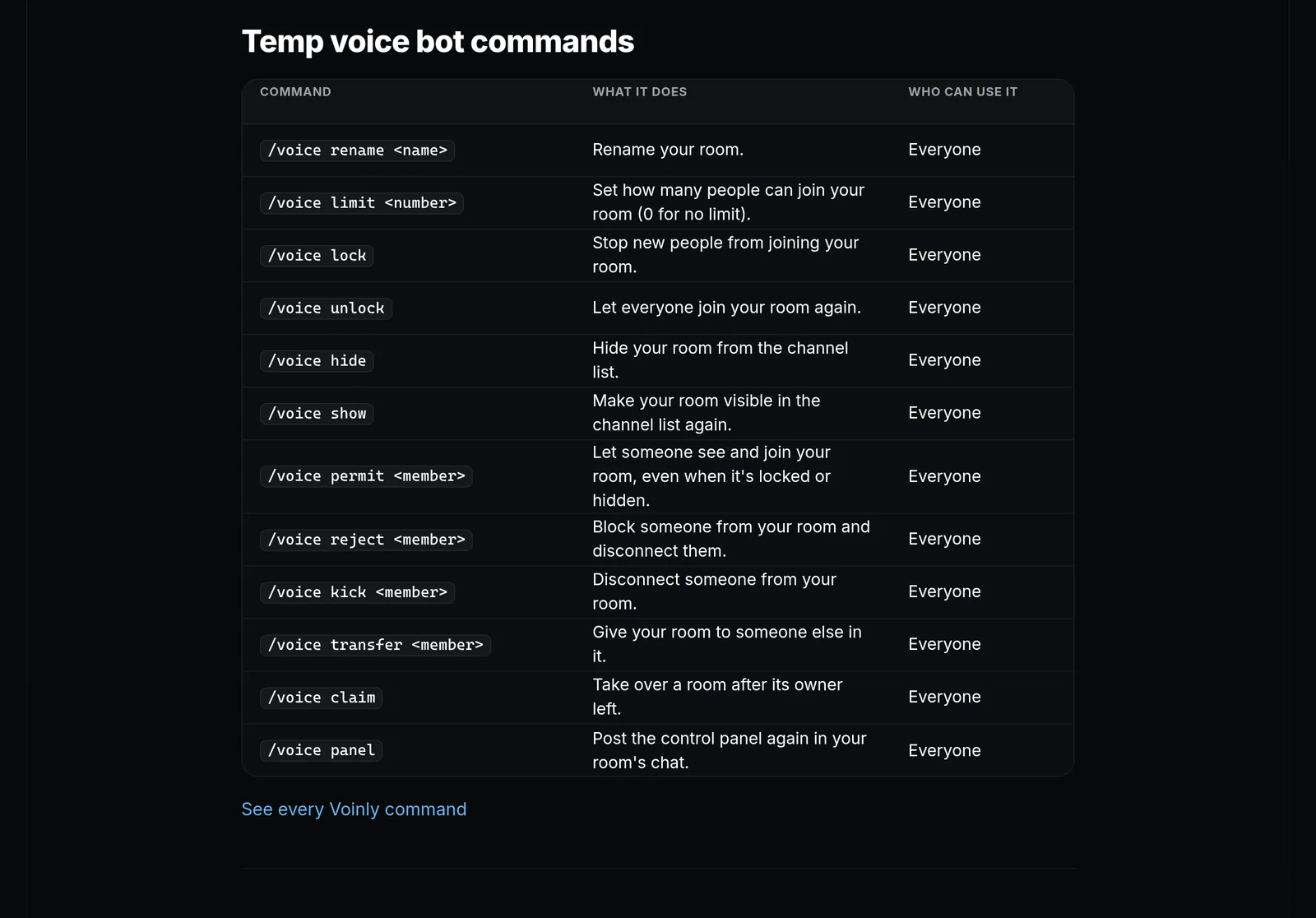
The control panel buttons and the /voice commands do the same job. You still choose which of the eight owner controls are available. Claim is always on. The live list is on Voinly's temp voice page and in the screenshot below, and again under the checklist.
Setting up a new server?
Start with the Discord server setup guide, then add Voinly.
A 10-minute checklist
-
Make the hub
A Voice rooms category exists, with an empty hub channel such as Create a room
-
Grant the four permissions
Voinly has Manage Channels, Manage Roles, Move Members and Connect in that category
-
Let members reach the hub
The Member or verified role can see and connect to the hub
-
Turn the module on
Temporary voice is on, with the hub added under Join-to-create channels
-
Set the room
Room name, user limit, bitrate and privacy are set
-
Choose controls and limits
Owner controls, the control panel and limits are chosen
-
Test a room
You joined the hub, were moved into a new room, then left and saw it delete
-
Optional: voice XP
Levels is on with Earn XP in voice channels
Join-to-create guide commands
| Command | What it does | Who can use it |
|---|---|---|
/voice rename <name> | Rename your room. | Everyone |
/voice limit <number> | Set how many people can join your room (0 for no limit). | Everyone |
/voice lock | Stop new people from joining your room. | Everyone |
/voice unlock | Let everyone join your room again. | Everyone |
/voice hide | Hide your room from the channel list. | Everyone |
/voice show | Make your room visible in the channel list again. | Everyone |
/voice permit <member> | Let someone see and join your room, even when it's locked or hidden. | Everyone |
/voice reject <member> | Block someone from your room and disconnect them. | Everyone |
/voice kick <member> | Disconnect someone from your room. | Everyone |
/voice transfer <member> | Give your room to someone else in it. | Everyone |
/voice claim | Take over a room after its owner left. | Everyone |
/voice panel | Post the control panel again in your room's chat. | Everyone |
Frequently asked questions
What is a tempvoice bot?
What are Discord temporary voice channels?
Can Discord make join-to-create channels without a bot?
Can I have different hubs for different games?
Is Voinly a TempVoice alternative?
What happens to the room when the owner leaves?
/voice claim, or it passes to someone inside automatically.Can members earn XP in temporary voice channels?
Is it free?
What are TempVoice-style temporary voice channels?
How do I set up temp voice?
Which commands control a temporary room?
/voice rename, /voice limit, /voice lock, /voice unlock, /voice hide, /voice show, /voice permit, /voice reject, /voice kick and /voice transfer. /voice claim is always available, and /voice panel posts the buttons again. The dashboard still decides which of the eight owner controls are on.Add Voinly to your server
Every Voinly module is free. The only paid extras are Custom bot and extra AI moderation scans (see pricing). Add it to Discord and set it up from the dashboard.
Add to Discord