


Discord Bot Can't Give Roles? How to Fix Missing Permissions
When a Discord bot can't give roles, a member clicks a reaction role and nothing happens. A new joiner never gets the Member role. Or Discord returns Missing Permissions (error 50013). In almost every case the bot is fine: Discord is blocking the action, usually because of role order. This guide walks through the checks in the order that fixes it fastest: role hierarchy, the Manage Roles permission, channel overrides, managed roles, and the server's 2FA requirement. The same rules apply to every Discord bot. Where it helps, you'll also see how Voinly flags the problem. If you are still setting the server up, start with the Discord server setup guide.
Updated
Why a bot "can't give roles"
Discord treats roles as a ladder. A bot (or a moderator) can only give, take or edit roles that sit below its own highest role, and it can only kick, ban, time out or rename members whose highest role is also below it. Equal to the bot, or above it, is not enough.
That restriction is separate from the permission tick boxes. Even a bot with Administrator cannot give a role that sits above it, and nobody can act on the server owner. The second requirement is Manage Roles itself: without it, every assignment fails, no matter where the bot sits in the list. The rest of this page covers a channel that hides the role menu, a role no bot is allowed to assign, and a 2FA requirement that blocks elevated permissions.
Step 1: Fix the role hierarchy
This is the fix that works most of the time.
- Open your server, click the server name, and go to Server Settings → Roles.
- Find the bot's role (created automatically when you add the bot, and usually named after it).
- Drag that role above every role the bot should give out: join roles, reaction roles, level rewards, verification roles and anything else it assigns.
- Put it above the members it should moderate as well. A bot cannot time out or kick someone whose highest role is at or above its own.
- Click Save Changes if Discord asks you to.
A clear order looks like this, from the top of the list down
| Position | Role | Why it sits there |
|---|---|---|
| Highest | Owner / Admin | People, not bots |
| High | The bot's role | Must sit above everything it manages |
| Mid | Moderators | The bot can still moderate them if they stay below it |
| Lower | Level rewards, Member, color and ping roles | The roles the bot actually gives |
| Lowest | @everyone | The baseline for every member |
A few details that catch people out
- New roles appear at the bottom, just above @everyone. If you create a "Level 10" role later, drag the bot back above it or leveling rewards can stop.
- Moving the bot above a staff role lets it moderate those staff. If you don't want that, keep staff above the bot.
After you move the role, test once: click a reaction role yourself, or have someone rejoin and confirm the join role appears.
Step 2: Confirm the bot has Manage Roles
If the order looks right and it still fails, check the permission.
- Still in Server Settings → Roles, click the bot's role.
- Open the Permissions tab.
- Make sure Manage Roles is on (sometimes listed under General Server Permissions).
- Save if you changed anything.
Give the bot only the permissions it needs
Administrator is not a shortcut for "make roles work." It grants every permission and bypasses channel overrides, but it still does not bypass the role ladder in Step 1, and it is a poor idea for a bot you do not fully control.
When you add Voinly, the invite asks for 29 specific permissions and never asks for Administrator. Manage Roles is on that list: Voinly uses it for join roles, reaction roles, level rewards and verification, and it can only manage roles below its own. You can untick any permission on Discord's screen and change them later under Server Settings → Roles → Voinly. A feature that needs a missing permission stops and says so in Settings → Error log.
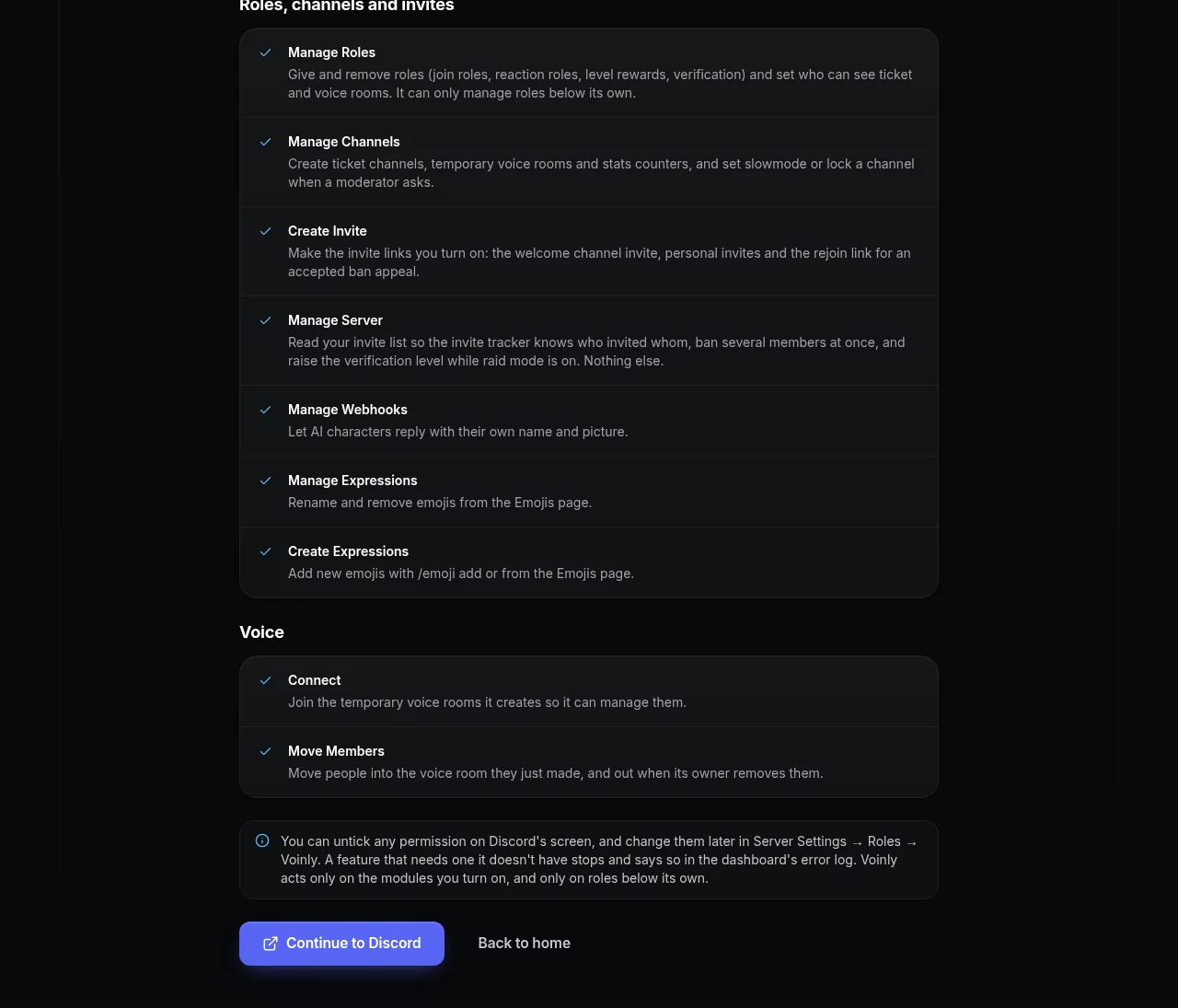
If you added Voinly a while ago, it may still have Administrator from an older invite. Open Server Settings → Roles → Voinly, untick Administrator, and tick the permissions on the invite list.
Step 3: Check channel overrides
Giving a role is a server-wide action. Channel settings do not usually block the assignment itself, but they do block the role menu, welcome post or verification button if the bot cannot see or speak in that channel.
If reaction roles "do nothing" when members click, or the bot never posts the menu:
- Right-click the channel (or its category) and open Edit Channel → Permissions.
- Add the bot's role if it isn't there.
- Allow View Channel and Send Messages. For a button or dropdown menu, also allow Embed Links. For a classic emoji menu, allow Add Reactions and Read Message History.
- Watch for a deny on @everyone or another role that also applies to the bot. A deny on the category is inherited by every synced channel inside it.
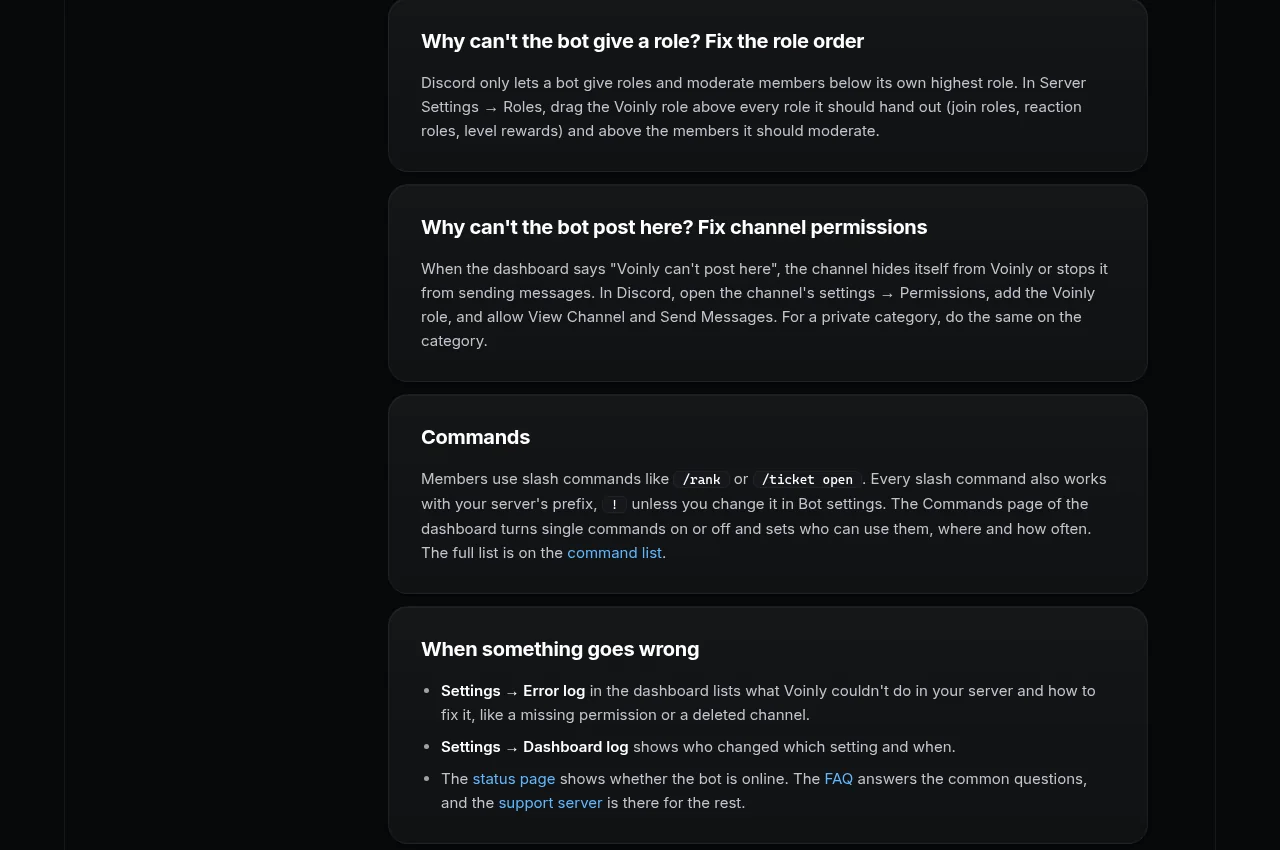
In Voinly, this usually shows up as "Voinly can't post here" in the dashboard. Add the Voinly role on the channel or category and allow View Channel and Send Messages, as the docs describe. For an emoji menu, you can also deny Add Reactions for @everyone in that channel, so members can click Voinly's reactions without adding random ones.
Step 4: Skip managed and integration roles
Some roles cannot be given or removed by any bot, no matter the hierarchy or permissions. Discord marks them as managed (owned by an integration). Typical examples:
- The Server Booster role (and other premium subscriber roles)
- The role Discord creates for another bot or app
- Linked roles (role connections tied to an external account)
- Roles sold through server subscriptions
You cannot put "Server Booster" on a reaction role menu or a join-role list and expect it to work. Create a normal, unmanaged role for colors, pings, levels and Member access, and let Discord handle the booster role itself. Roles sold through Server Subscriptions are managed the same way. How to make a paid Discord server covers the channels those roles unlock, and the ordinary roles a bot can still assign. Voinly's reaction roles menu builder flags a role it cannot give as you add it.
Step 5: Check the 2FA requirement
A server can require two-factor authentication for moderator actions. You'll find the setting in Server Settings, under Safety Setup or Moderation, depending on your Discord client. For people, a moderator without 2FA cannot kick, ban, time out, manage messages or manage roles, even if their role allows it. Turn 2FA on for every account that has those permissions, including your own.
For bots, Discord's developer docs are specific: on a server with this requirement, elevated permissions such as Manage Roles, Kick Members, Ban Members and Manage Messages also require 2FA on the bot owner's account. If that account has no 2FA, the API returns error 60003 ("Two factor is required for this operation"), which is easy to mistake for a generic permissions failure. Enable 2FA on the account that owns the bot application; do not "fix" it by giving the bot Administrator.
Step 6: Test, and read the error instead of guessing
After each change, confirm the bot is online, its role sits high enough, and Manage Roles is on, then try one action you control. If it still fails, read the exact error. Common Discord API codes:
| Code | Official meaning | What it usually means for roles |
|---|---|---|
| 50013 | You lack permissions to perform that action | Missing Manage Roles, or the target role or member is too high in the list. The classic "Missing Permissions" error. |
| 50001 | Missing access | The bot cannot see the channel, or is not in the server. |
| 60003 | Two factor is required for this operation | The server requires 2FA for elevated permissions, and the bot owner's account doesn't have it (see Step 5). |
| 50028 | Invalid role | The role no longer exists, or the id is wrong. |
In Voinly you rarely have to decode those numbers yourself. Open Settings → Error log in the dashboard. It lists what Voinly couldn't do, such as a missing permission or a deleted channel, and how to fix it. For join roles, run /joinroles check after you move things around.
Settings → Error log
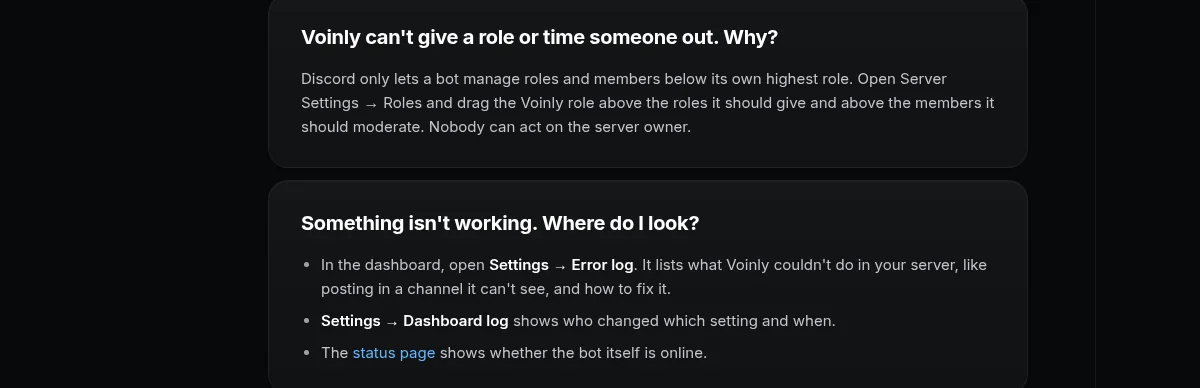
How this shows up in Voinly
Several Voinly modules assign roles, and they all follow the Discord rules above. The dashboard tells you when a chosen role sits too high or needs a permission, instead of failing silently.
- Join roles (autorole). Give roles to people and to bots when they join, optionally wait for rules screening, and optionally restore old roles when someone rejoins. After you rearrange the list, run
/joinroles check. - Reaction roles. Members pick roles from buttons, a dropdown or emoji reactions. The builder flags a role Voinly can't give. With buttons and dropdowns, members get a private reply when a click is blocked.
- Leveling. Members earn XP for chatting and time in voice, and can unlock role rewards as they level up (up to 100 rewards). Drag the Voinly role above every reward role, or those rewards are skipped.
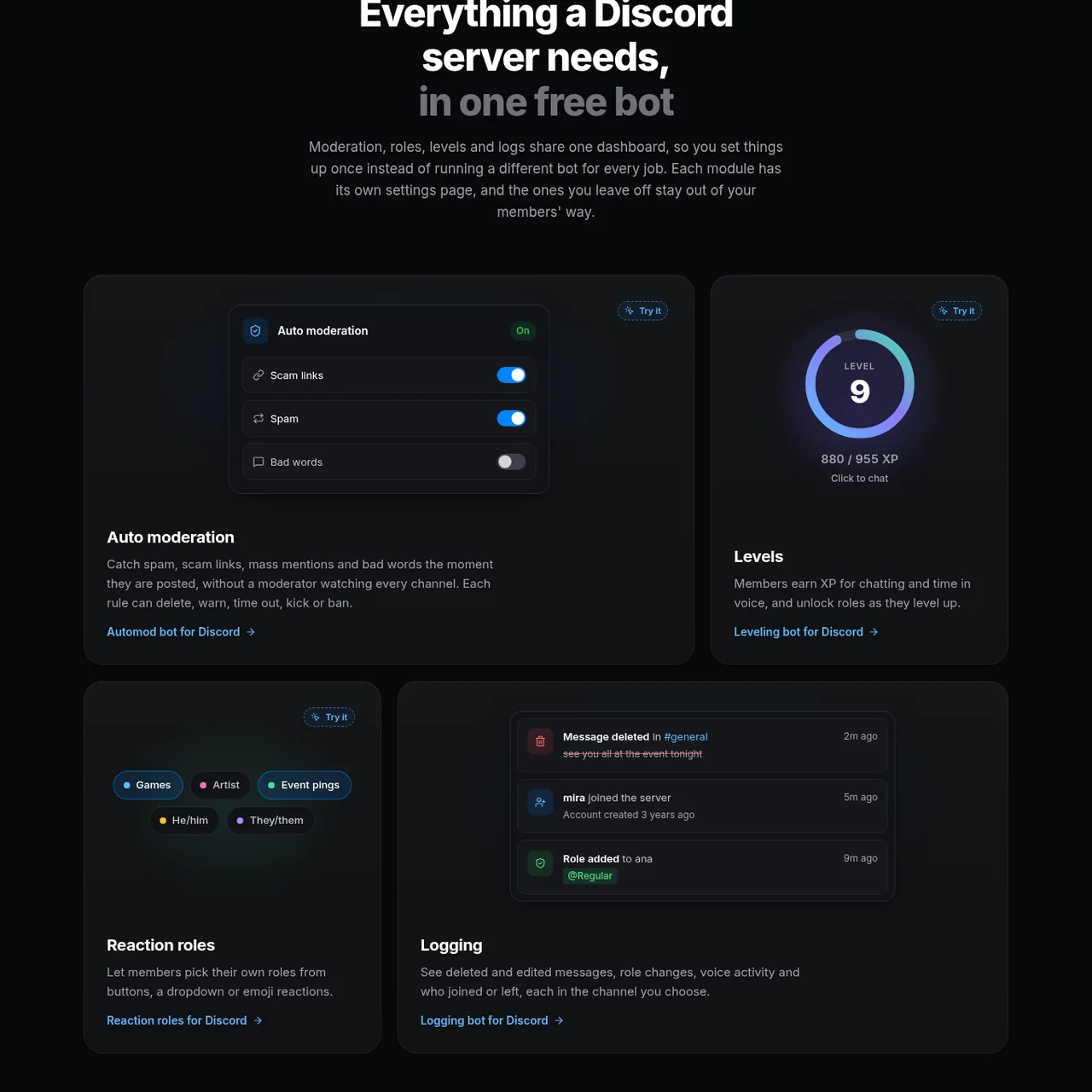
Verification, role connections, invite-tracker rewards, a birthday role (birthday bot guide) and the economy shop also assign or remove roles, and fail the same way if the order is wrong.
Still stuck after a fresh server setup?
Walk through the Discord server setup guide, then add Voinly and follow the docs. If a role still won't assign, the error log is the shortest path to the cause.
A 5-minute checklist
-
Put the bot's role high enough
In Server Settings → Roles, the bot's role sits above every role it should give and above the members it should moderate
-
Turn on Manage Roles
Manage Roles is on; Administrator is off unless you have a strong reason
-
Let the bot post the role menu
The role menu's channel (and its category) lets the bot view, post, embed and, for emoji menus, add reactions
-
Skip managed roles
The roles you want assigned are normal server roles, not Server Booster or another app's managed role
-
Cover the 2FA requirement
If the server requires 2FA for moderator actions, your moderators have it, and so does the bot owner's account
-
Test, then read the error log
You tested one click or one join, then checked the bot's error log if it still failed
Frequently asked questions
Why can't my Discord bot give roles?
What does Discord error 50013 Missing Permissions mean?
Does Administrator let a bot skip the role hierarchy?
Why aren't my reaction roles working?
Can a bot give the Server Booster role?
Why would a bot need two-factor authentication?
How do I check whether Voinly can give a role?
/joinroles check for autoroles, and open Settings → Error log for anything that already failed.Is Voinly free?
Add Voinly to your server
Every Voinly module is free. The only paid extras are Custom bot and extra AI moderation scans (see pricing). Add it to Discord and set it up from the dashboard.
Add to Discord