

A free Discord ticket bot with transcripts
Voinly is a free ticket bot for Discord. Members pick a topic from a panel, answer a few questions and get a private channel or thread with your support team. Staff claim it, close it with a reason, and Voinly saves a transcript of the whole conversation. The Discord ticket setup guide walks through staff roles, categories, transcripts and the usual fixes. Everything is set up in the dashboard, and all of it is free.
Ticket panels with buttons or a dropdown
A panel is one message in a channel of your choice. Members open a ticket by pressing a topic button or by choosing a topic from a dropdown menu. One panel holds up to 25 topics, and each topic has its own name, emoji, short description and button color.
You build the panel in the dashboard with a live preview, then press Post panel. If you change it later, the dashboard shows that Discord still has the older version, and Update in Discord replaces it. Members who prefer commands can also run /ticket open and pick a topic there.
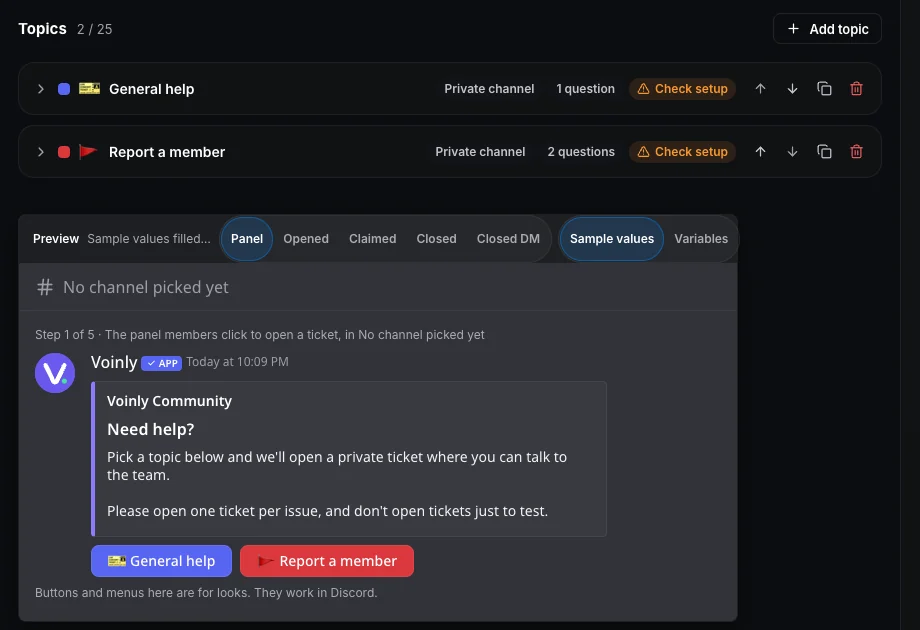
Each topic opens a private channel or a private thread
Topics are set up one by one, so a billing question and a player report don't have to work the same way. For each topic you choose:
- Channel or thread. A private channel in a category, or a private thread inside a text channel. Threads keep your channel list short on busy servers.
- Support roles that can see and answer the ticket, and ping roles that get mentioned when it opens.
- A name template such as
ticket-{number}orreport-{number}. Numbers count up per server, so every ticket has its own number. - Up to 5 questions that pop up before the ticket opens, each short or paragraph, required or optional. The answers are posted at the top of the ticket, so staff don't have to ask again.
- A welcome message posted in the new ticket, with a Close button under it.
Limits, claiming and who can see a ticket
Only the member who opened a ticket and the topic's support roles can see it. Staff can add or remove anyone else with /ticket add and /ticket remove.
Set how many open tickets one member may have at a time (up to 25, or no limit), a wait between new tickets, and roles that can't open tickets at all. You decide whether members can close their own tickets; staff always can.
With claiming on, every ticket gets a Claim button. The member sees who is helping them, the claim is recorded, and a claimed ticket can move to its own category. Turn on claim lock and only the claimer can reply: other support staff can still read along, and admins can always step in.
Closing, reopening and auto-close
Closing can ask "Are you sure?" first and can require a reason, which then appears in the log, the transcript and the member's DM. After closing, a ticket is deleted after a short delay, moved to a closed category, or kept in place. Moved and kept tickets are hidden from the member and stay readable for staff. A Reopen button brings a closed ticket back, and reopening one that is about to be deleted cancels the deletion.
Tickets that went quiet can close themselves. You set how long a ticket may sit without messages (up to 30 days), and Voinly posts a warning before it closes. Any new message keeps the ticket open. By default Voinly only auto-closes tickets where staff sent the last message, so members are never left without an answer. You also choose what happens when the person who opened a ticket leaves the server: nothing, ask staff, or close it.
Ticket transcripts in a channel, by DM and in the dashboard
When a ticket closes, Voinly saves a ticket transcript: a web page file with the whole conversation that opens in any browser. It is posted to a transcripts channel of your choice and, if you leave the option on, sent to the member by DM. Every transcript is also kept in the All tickets tab of the dashboard. Staff and the member who opened a ticket can get a transcript of the conversation so far with /ticket transcript.
Ratings, support hours, logs and stats
- Ratings. After a ticket closes, the member can get a DM with 1 to 5 star buttons and your own question. Ratings show up in the All tickets tab and the log.
- Support hours. Pick days, a start and end time and a time zone. Outside those hours tickets either open with a notice saying when your team is back, or don't open at all.
- Log channel. Follow tickets being opened, claimed, closed, reopened and rated, and choose which of those events are logged.
- Stats.
/tickets statsshows open tickets, response times and ratings, so you can see whether your team keeps up.
Set up the ticket bot in 5 steps
-
Create a staff role
In Discord, open Server Settings, then Roles, and create a role for the people who answer tickets, such as Support. You can make one role per topic if different teams handle different questions.
-
Put Voinly's role high enough
Voinly needs Manage Channels to create ticket channels and Manage Roles to decide who can see them. For thread tickets it needs Create Private Threads and Manage Threads in that channel. Keep Voinly's role above the roles it works with in the role list.
-
Build the panel
Add Voinly, open the dashboard and go to Tickets. Under Panels, pick the channel to post in, choose buttons or a menu, and add your topics with their support roles, questions and channel or thread setting. Then look through Limits, Claiming, Closing and Transcripts.
-
Publish it
Press Post panel. Voinly posts the panel in the channel you picked, with one button or menu option for each topic.
-
Test it
Open a ticket from the panel with an account that has no staff role. Check that only you and the support role can see it, answer the questions, then close it and look for the transcript in your transcripts channel and the All tickets tab. For every option on each screen, read the full Discord ticket setup guide.
Ticket bot commands
| Command | What it does | Who can use it |
|---|---|---|
/ticket open [topic] | Open a ticket without going to the panel. | Everyone |
/ticket close [reason] | Close the ticket you're in. | Staff or the ticket opener |
/ticket claim | Claim the ticket so the member knows you're helping. | Support staff |
/ticket unclaim | Release a ticket you claimed. | The claimer or an admin |
/ticket add <member> | Give a member access to this ticket. | Support staff |
/ticket remove <member> | Remove a member's access to this ticket. | Support staff |
/ticket rename <name> | Rename the ticket channel. | Support staff |
/ticket transcript | Get a transcript of this ticket so far. | Staff or the ticket opener |
/ticket reopen | Reopen a closed ticket. | Staff or the ticket opener |
/tickets stats | See open tickets, response times and ratings. | Support staff |
/form [name] | Fill in one of this server's forms, or list the ones you can fill in. | Everyone |
Frequently asked questions
Is the ticket bot free?
Can tickets be threads instead of channels?
Does it save transcripts?
Can I limit who sees a ticket?
/ticket add and /ticket remove, and claim lock lets only the claimer reply.Can Voinly replace a separate ticket bot?
Add Voinly to your server
Every Voinly module is free. The only paid extras are Custom bot and extra AI moderation scans (see pricing). Add it to Discord and set it up from the dashboard.
Add to Discord