
How to Add Reaction Roles in Discord
To add reaction roles in Discord, create the roles in Server Settings, then use a bot that posts a menu members click to give themselves those roles. With Voinly's reaction roles bot you build the menu in the dashboard with buttons, a dropdown or emoji reactions and post it in a few clicks, for free.
Updated
Before you start: set up the roles in Discord
Every reaction role menu hands out roles that already exist in your server, so create them first. Open Server Settings → Roles, press Create Role, give it a name and a color, and leave its permissions off if it is only a label like a pronoun, a region or a ping role.
Then check the role order. Discord only lets a bot give roles that sit below its own highest role, so drag the Voinly role above every role the menu hands out. This is the reason behind most "the bot can't give the role" problems, with any bot. The roles guide walks through that order, Manage Roles, channel overrides and roles Discord itself manages.
Last, check the channel the menu goes in. Members need to see it and read its history. Voinly needs to send messages and embeds there, and for an emoji menu it also needs Add Reactions and Read Message History. A useful trick for emoji menus: turn Add Reactions off for @everyone in that channel. Members can still click the reactions Voinly added, but they can't add random ones that clutter the menu.
Can you do reaction roles without a bot?
Partly. In a Community server, Discord's own Onboarding (Server Settings → Onboarding) lets you add customization questions whose answers give roles and open channels. New members answer them while joining, and anyone can change their answers later under Channels & Roles at the top of the channel list.
It needs no bot, but it only works in Community servers, and the questions live in onboarding and Channels & Roles, not as a menu in one of your channels. You can't post it next to your rules, use emoji reactions on an existing message, or set a mode like Pick one or a limit of roles per member. A bot menu adds those, and it works in any server. Both can run side by side, for example Onboarding for interests and a Voinly menu for name colors.
Buttons, a dropdown or emoji reactions?
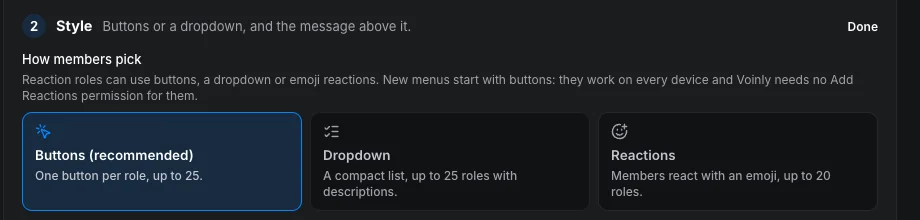
"Reaction roles" started with emoji reactions, but Discord now has buttons and dropdowns that are easier to use, especially on phones. Voinly supports all three, and a new menu starts with buttons.
| Type | What it's best for |
|---|---|
| Buttons | Most menus. Up to 25 roles, one colored button each, one click on any device. |
| Dropdown | Long lists like games or regions. Up to 25 roles, each with a short Description, in one compact menu. |
| Reactions | Classic emoji menus, and roles on a message that is already posted. Up to 20 roles, Discord's limit of reactions per message. |
Pick the right mode
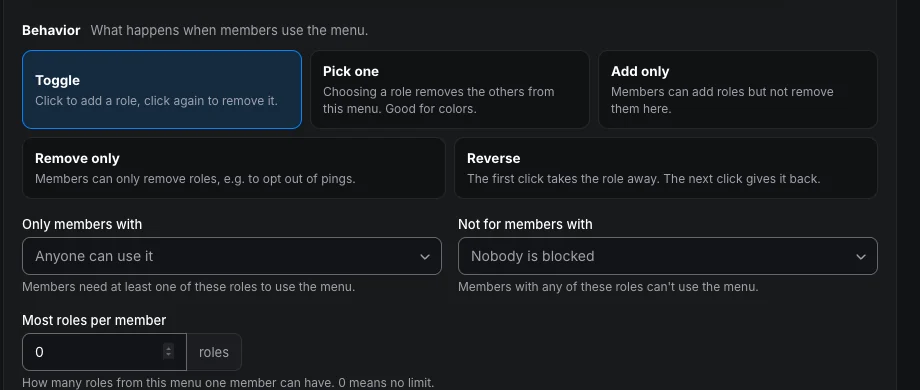
The Mode decides what a click does. Pick it per menu:
- Toggle: click to add a role, click again to remove it. The default, and right for most menus.
- Pick one: choosing a role removes the others from this menu. Use it for name colors or anything a member should only have one of.
- Add only: members can take roles but not remove them here, for example a rules agreement.
- Remove only: members can only drop roles, such as opting out of announcement pings.
- Reverse: the first click takes the role away and the next gives it back. A dropdown has no "first click", so a dropdown set to Reverse works like Toggle.
How this differs from other role features
Reaction roles are the menu members click. Other modules hand out roles without that click, and they use the same role-order rule.
- Join roles gives roles the moment someone joins, including bots, and can give returning members their old roles back.
- The leveling guide covers roles earned from XP. Those are not options on this menu.
- The welcome message guide is where you tell new members which channel holds the menu.
- Temporary voice does not give roles. The join-to-create guide is the setup for rooms that appear when someone joins a hub.
- A custom command can toggle a role when someone types it, with no menu posted in a channel.
- A poll is not a role. When members should pick an answer rather than receive a role, follow the voting bot guide.
Reaction roles troubleshooting
- The role is above Voinly. Drag Voinly's role above it in Server Settings → Roles. A role level with Voinly, or above it, cannot be given.
- Voinly is missing Manage Roles. Turn that permission on for its role.
- The role is managed by Discord or another app, such as Server Booster or a bot's own role. No bot can hand those out. @everyone cannot be given either. Pick a normal role.
- The role was deleted. Open the menu and pick a role that still exists.
- Nothing happens on click. Reaction roles must be turned on. A posted menu does nothing while the module is off. Also check Only members with and Not for members with.
- An emoji menu adds no reactions. In that channel Voinly needs Add Reactions and Read Message History. Discord also stops at 20 reactions on one message.
- Buttons or a dropdown never appear on someone else's message. Those styles have to be on a message Voinly posts. Only Reactions can use a message that is already there.
How to add reaction roles with Voinly
-
Open Reaction roles in the dashboard
Add Voinly to your server, log in at voinly.com with Discord, pick the server and open Reaction roles. Press "Turn on Reaction roles", then "New menu", or start from a ready menu such as Pronouns, Name colors or Notification pings. You can have up to 50 menus.
-
Add the roles
In step 1 of the builder, add a line per role: choose the Role, an optional Emoji and a Label (it defaults to the role name). Buttons also get a Color (Blue, Grey, Green or Red) and dropdown options a Description. The builder flags problems as you go, such as a role Voinly can't give or an emoji used twice.
-
Choose the style and write the message
In step 2, pick Buttons, Dropdown or Reactions, then write the message that sits above the menu. The editor shows a live Discord-style preview with the real buttons, so you see the result before anything is posted. For a dropdown, set the Dropdown placeholder members see before they pick.
-
Set the behavior and limits
Choose the Mode, then the limits: Most roles per member (0 means no limit), Only members with to make the menu need a role (handy after verification) and Not for members with to keep a role out. Leave Tell members what changed on so members get a private reply like "Added @He/Him". You can edit that reply in What members read.
-
Choose where to post
In step 3, pick the Channel. For an emoji menu you can choose "Use a message that's already posted" instead: in Discord, right-click the message (long-press on mobile), choose Copy Message Link and paste it. Voinly adds the reactions to that message but can't change the text of a message someone else sent.
-
Post the menu and test it
Press "Post". The menu shows a badge such as Draft, Posted or Changes not posted, so you always know whether Discord matches the dashboard. After an edit, press "Update in Discord" or run
/rolemenu publishwith the menu's name./rolemenu listshows every menu and where it is posted. Click a role yourself to check that it is given and taken away.
Reaction roles guide commands
| Command | What it does | Who can use it |
|---|---|---|
/rolemenu list | Show this server's role menus and where they're posted. | Manage Server |
/rolemenu publish <menu> | Post a role menu, or update its message if it's already posted. | Manage Server |
Frequently asked questions
Why can't the bot give the role?
I posted the menu but nothing happens when members click it
Can I add reaction roles to a message I already posted?
How many reaction roles can I have?
What is the difference between reaction roles and join roles?
Can leveling rewards be buttons on this menu?
Is it free?
Add Voinly to your server
Every Voinly module is free. The only paid extras are Custom bot and extra AI moderation scans (see pricing). Add it to Discord and set it up from the dashboard.
Add to Discord