
How to make Discord custom commands
Discord custom commands are commands you add yourself. A custom command Discord bot runs them, because Discord has no built-in way to add your own. With Voinly you create them in the dashboard: pick a name, write the reply, and the command works with your prefix and, if you want, as a slash command. It is free and needs no code.
Updated
What custom commands are good for
Discord custom commands are shortcuts your members or staff type to get a fixed answer. A custom command Discord bot is what runs them, because Discord has no setting for your own commands. Instead of explaining the rules or pasting the same links again and again, someone types !rules and Voinly posts them. Common ones:
- Info answers: rules, social links, how to apply, the server's IP for a game server.
- Staff shortcuts: a standard reply for a common question, sent as a DM or only visible to the member.
- Role commands: !notify to toggle a ping role, or a command that gives an event role.
- Fun: an answer picked at random from up to 10 responses, like a custom 8-ball.
Can Discord do custom commands on its own?
No. Discord's slash commands all come from apps, and there is no setting to add your own reply to a word. The closest things without a bot are pinned messages, a rules or FAQ channel, and in Community servers the onboarding questions. They work, but members have to go and look; a command brings the answer to the channel they are in.
Prefix command or slash command?
Every Voinly custom command works with your prefix, which is ! unless you changed it in Bot settings. Turn on Add as a slash command and it also appears in Discord's / menu with its Description, which helps members find it. The difference:
| Prefix | Slash | |
|---|---|---|
| How members run it | Type !rules | Type / and pick it from the menu |
| Other names | Up to 10 Aliases | Only the main name |
| Input | Words after the name fill {args} | An optional input box, described by Input description |
| Only the member sees it | Sent as a DM instead | A private reply in the channel |
Variables for responses
Responses can use the same variables as every Voinly message, like {user} for a mention of the member and {server} for the server name. Custom commands add the words typed after the command:
{args}: everything typed after the command name.{args.1}to{args.20}: one word each, so !hug Mika can say "{user} hugs Mika" with{args.1}.{args.count}: how many words were typed.
Custom commands or an auto responder?
A custom command runs when someone types its name. If you want Voinly to answer when a word or phrase appears anywhere in a message, such as "how do I join", use Auto responder instead. Both are on the custom commands and auto responses page, and many servers use both.
How to make custom commands with Voinly
-
Open Custom commands and turn it on
In the dashboard, open Custom commands and press "Turn on Custom commands". Then press "New command", or start from an example: Server rules, Social links, Role toggle, Announcement or Random answer. You can have up to 100 commands.
-
Name the command
Type the Name: lowercase letters, numbers, dashes and underscores, so rules becomes !rules. A name that is already a Voinly command, like help, is refused, so members never lose a built-in one. Under "More options", add Aliases and a Description.
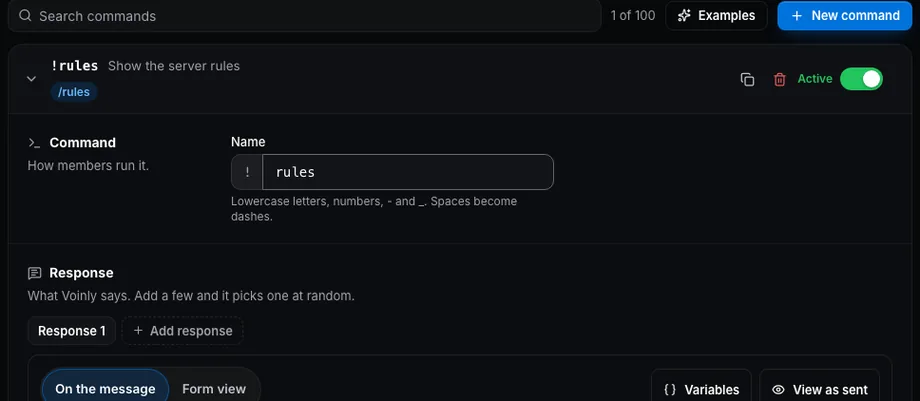
A command shows both its prefix and slash name once the slash version is on. -
Write the response
Write what Voinly says: text, an embed, link buttons, or all three, with a live preview. Add more Responses and Voinly picks one at random each time. Under Where to respond, choose Reply to the member, Send in the same channel, Send in another channel, Send as a DM or the private option. Delete the response after and Delete the member's message keep busy channels clean.
-
Change roles (optional)
A command can also give, take or toggle roles with Give these roles, Take these roles and Toggle these roles, up to 25 each. Toggle gives the role to members who don't have it and takes it from members who do. Voinly's role must sit above those roles in Server Settings → Roles, and Voinly needs Manage Roles.
-
Decide who can use it and where
Set Required roles or a Required permission for staff commands, Only works in to keep it to some channels or categories, and Cooldown per member against spam. Admins skip the role and permission checks, but channel limits and cooldowns still apply to them.
-
Add the slash version and test it
Turn on Add as a slash command; Discord shows it within a minute of saving. Type something in "Try it" and press "Send test to my DMs" to get the saved response yourself. The test never changes roles. Save, then run the command in your server.
/customcommands listshows every command and/customcommands infoexplains one.
Custom commands guide commands
| Command | What it does | Who can use it |
|---|---|---|
/customcommands list | List this server's custom commands. | Everyone |
/customcommands info <name> | Show what a custom command does and who can use it. | Everyone |
Frequently asked questions
What is a custom command Discord bot?
How do I add Discord custom commands?
My command does nothing when I type it
!. If the command is limited by Only works in or Required roles, try it where and as someone who is allowed. If it still fails, open Settings → Error log in the dashboard. It lists what Voinly couldn't do in your server and how to fix it (see Something isn't working).The slash command doesn't show up
Can members see a list of the custom commands?
/customcommands list, as long as Include in the command list is on under Options. Turn it off to keep staff shortcuts out of the list.Why can't the command give the role?
Are custom commands free?
Add Voinly to your server
Every Voinly module is free. The only paid extras are Custom bot and extra AI moderation scans (see pricing). Add it to Discord and set it up from the dashboard.
Add to Discord