
Discord ticket setup: a ticket tutorial

A Discord ticket setup gives each request its own private space that staff can claim, hand over and close. This Discord ticket bot setup is a free Ticket Tool alternative: members press a panel, a topic opens a private channel or thread, and a transcript is saved when it closes. The ticket tool setup below uses Voinly's ticket bot. If you are still building the server, start with the server setup guide.
Updated
What Discord tickets are
A Discord ticket is a private conversation between one member and your staff. Instead of questions disappearing in a busy channel, or support happening in DMs that nobody else can follow, each request gets its own space. Discord has no built-in ticket system, so a bot posts the panel, creates the private space and keeps a record when it closes. That is how you make tickets in Discord.
You post a panel in a public channel, usually #support. A member presses a topic button, or picks a topic from a dropdown, and can be asked a few questions first. A private channel or private thread then opens that only that member, the topic's support roles and the bot can see. A staff member claims it, helps, and closes it, often with a reason. The bot can save a transcript and ask the member to rate the help. Members can also open a ticket with /ticket open.
Public help channels work for questions anyone can answer, but not for reports or anything a member would rather keep private. Staff DMs have the opposite problem: there is no handoff or transcript. Topics route each request to the right people. Start with two or three and add more later:
- General help, answered by your support role, with one question: what do you need help with?
- Report a member, answered by moderators, asking who and what happened, with message links.
- Appeal a warning or timeout, answered by senior staff. People who have already been banned cannot open a ticket, so use a ban appeal form for that.
- Partnerships or business, answered by admins only, often as a private thread so the channel list stays short.
- Staff applications are usually a better fit for a form than a ticket. See the application form guide.
How this compares with Ticket Tool
Ticket Tool is a well-known Discord bot built for support tickets. You create a Support Team role, build a panel in its dashboard and send that panel to a channel. The table is not a ranking. It only compares what each project publishes, with no links out to either site's docs.
| Voinly | Ticket Tool | |
|---|---|---|
| What it is | An all-in-one bot. Tickets are one module, next to moderation, welcome messages and roles. | A bot focused on support tickets. |
| Price | Tickets are free. The only paid extras are Custom bot and extra AI moderation scans (see pricing). | A free bot with Premium at $8 a month or $66 a year. |
| Who can configure it | You need Manage Server to add Voinly. It never asks for Administrator (invite permissions). | Setup requires Administrator in the server. Manage Server is enough to invite the bot, but you need Administrator, a dashboard role or ownership to edit the config. |
| Claiming | Included: a Claim button, Only the claimer can reply, and an optional Claimed category. | Claiming is a Premium feature. |
| Thread tickets | Each topic can open a Private channel or a Private thread, and you can mix both on one panel. | Thread-style tickets are a Premium setting. Ticket Tool's docs also say they are incompatible with claiming, adding and removing members, and permission options. |
| Transcripts | Every closed ticket is saved as a web page file, posted to a transcripts channel, optionally DMed to the member, and kept in the dashboard's All tickets tab. | Transcripts are HTML files capped at 1,000 messages. Ticket Tool does not store them; they are sent to your Discord. Its docs list auto-saving on close and DMing the transcript as premium settings, and also document optional Google Drive storage. |
Ticket Tool's docs also describe tools Voinly's public pages do not mention, such as escalating a ticket to another panel and Premium automations. That is a difference in what is published, not a verdict on either bot.
Prepare roles, categories and channels
Do this in Discord before you post a panel.
- A staff role: in Server Settings → Roles, create a role for the people who answer tickets, for example Support. You can add more later if different teams handle different topics.
- Voinly's role and permissions: Voinly needs Manage Channels to create ticket channels and Manage Roles to decide who can see them. For thread tickets it also needs Create Private Threads, Manage Threads and Send Messages in Threads in that channel. Attach Files is used for ticket transcripts. Keep Voinly's role above the roles it works with in the role list. If it cannot change those roles, the roles guide covers role order and Manage Roles. Voinly never asks for Administrator. The permissions are listed on the invite page.
- A category for open tickets: right-click the channel list, choose Create Category and name it Tickets. Make it private: @everyone should not see it. Voinly sets the permissions of each new ticket itself, but it needs Manage Channels in that category. If you want claimed or closed tickets moved aside, create those categories too, also staff-only.
- A staff-only channel for transcripts and the ticket log, so closed conversations do not end up somewhere members can read them.
- A public channel for the panel, such as #support, where members can see the message but do not need to type. A read-only channel keeps the panel easy to find.
Build the panel and add topics
In the dashboard, open Tickets and press "Turn on Tickets". Under Panels you will find a ready-made Support panel with two topics, General help and Report a member, which you can edit or replace with "New panel".
- Give it a Panel name (only shown in the dashboard), choose Post in for the channel members see, and write the Panel message, for example what tickets are for and what not to open one for.
- Under Members pick a topic with, choose Buttons or A menu. A menu fits better once you have many topics. One panel holds up to 25 topics.
- Each topic has a Name, Emoji, Description and Button color. Choose a Private channel or a Private thread, then the Category or the channel to Create threads in. Set the Support roles who can see and answer it and, if you like, Ping when opened. The Channel name starts as
ticket-{number}; you can use a template such asreport-{number}. Numbers count up per server. - Add up to 5 Questions per topic, the most a Discord pop-up holds. Each has a Question, a Hint, an Answer box of Short or Paragraph, and Required. Members answer before the ticket opens, and the answers are posted at the top. Put them in the topic's Welcome message with
{answers}. The welcome message can include a Close button.
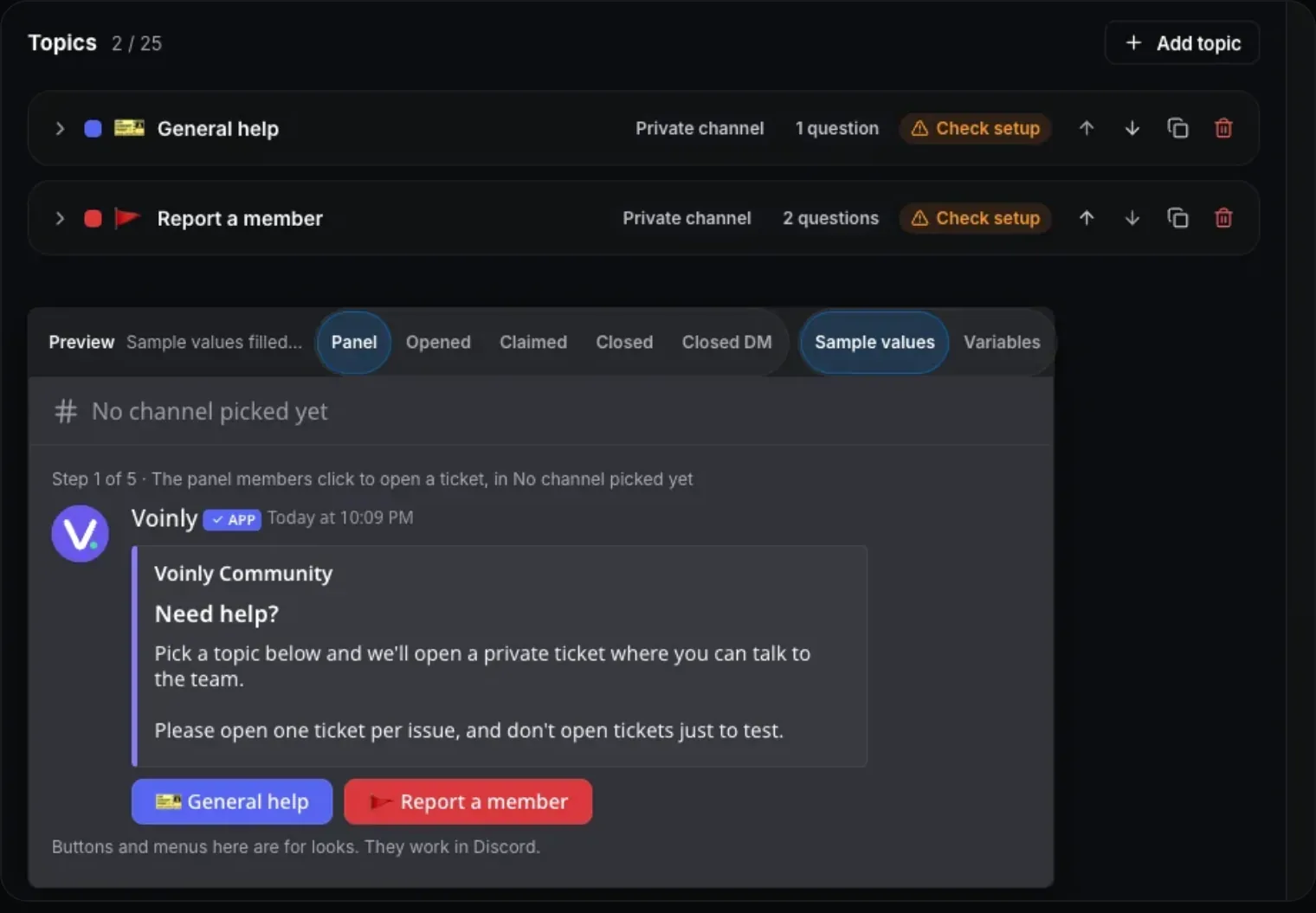
You build this with a live preview. If you change a panel that is already posted, "Update in Discord" replaces the older version.
Staff roles, permissions and who can see a ticket
Only the member who opened a ticket, the topic's Support roles and Voinly are added to it. If staff cannot see a new ticket, their role is usually missing from Support roles on that topic. Add it on every topic they should handle. Members with Administrator see every channel anyway, because that is how Discord works.
Staff can add or remove anyone else with /ticket add and /ticket remove, and rename the channel with /ticket rename. Members can close their own tickets is your choice; staff always can. Under Limits you can set Open tickets per member (up to 25, or no limit), Wait between tickets, and Can't open tickets for roles that should not open them at all.
Categories, channels and threads
Each topic opens tickets one way or the other. Channels are easier to spot in the sidebar. Threads keep the channel list short on a busy server.
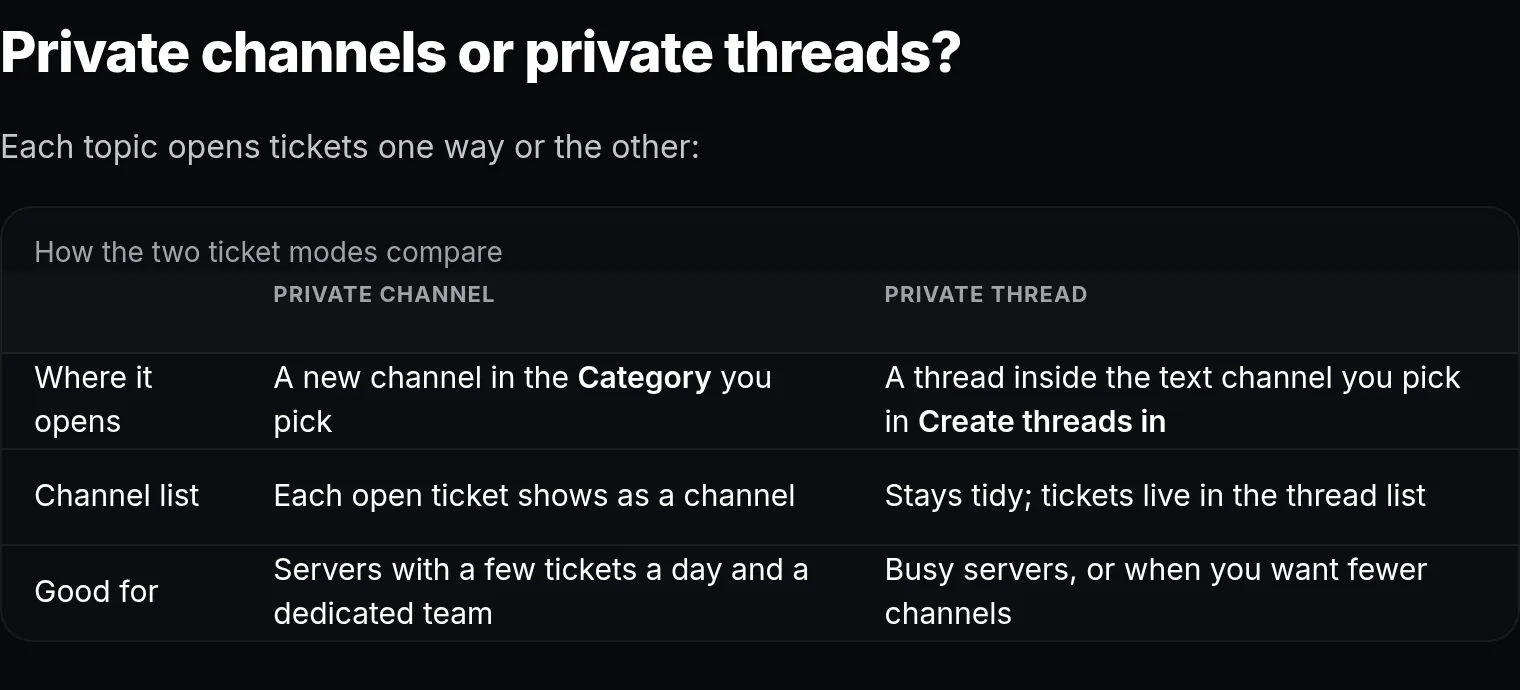
| Private channel | Private thread | |
|---|---|---|
| Where it opens | A new channel in the Category you pick | A thread inside the text channel you pick in Create threads in |
| Channel list | Each open ticket shows as a channel | Stays tidy; tickets live in the thread list |
| Good for | Servers with a few tickets a day and a dedicated team | Busy servers, or when you want fewer channels |
With Let staff claim tickets on, a claimed ticket can move to its Claimed category. When a ticket closes, Closed tickets can be Delete, Move to a category, or Keep in place. Moved and kept tickets are hidden from the member and stay readable for staff. Thread tickets are archived and locked when they close, unless you have them deleted.
Claiming, closing, transcripts and logs
With Let staff claim tickets on, every ticket gets a Claim button. The member sees who is helping, and staff can use /ticket claim and /ticket unclaim. Turn on Only the claimer can reply and only the claimer can reply: other support staff can still read along, and admins can always step in.
Support hours let you Set support hours with days, a start and end time and a time zone. Outside those hours, tickets either open with a notice saying when your team is back, or do not open at all. After a close, Ask for a rating after closing can send the member a DM with 1 to 5 star buttons. /tickets stats shows open tickets, response times and ratings.
Under Closing, you can Ask “Are you sure?” before closing and Require a reason, which then appears in the log, the transcript and the member's DM. Staff close a ticket with the Close button or /ticket close. Allow reopening, or /ticket reopen, brings a closed ticket back and cancels a pending deletion.
Tickets that went quiet can close themselves. Close tickets with no messages for is the wait you set (up to 30 days), and Warn this long before closing posts a warning first. Any new message keeps the ticket open. Only when waiting on the member is on by default, so Voinly only auto-closes tickets where staff sent the last message and members are not left without an answer. If the person who opened it leaves can be Do nothing, Ask staff, or Close it.
When a ticket closes, Voinly saves a ticket transcript: a web page file of the conversation, posted to Send transcripts to and, if you leave DM the transcript to the member on, sent to the member. Every transcript is also kept in the All tickets tab. /ticket transcript gives staff or the opener a copy of a ticket so far. A separate Log channel can follow tickets being opened, claimed, closed, reopened and rated. Keep both channels staff-only.
Post the panel and test it
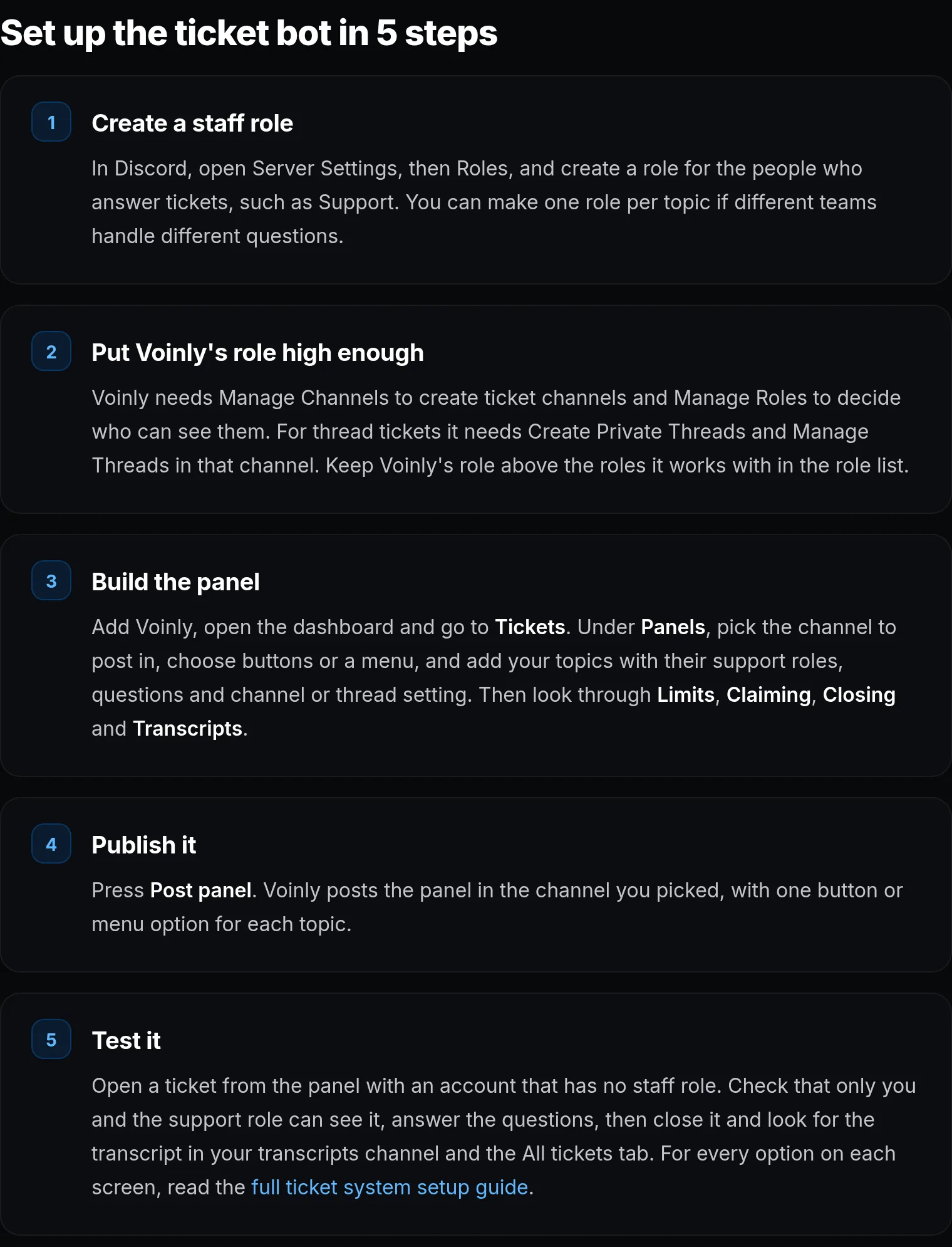
Press "Post panel". Voinly posts the panel in the channel you picked, with one button or menu option for each topic. Then test the whole flow with an account that has no staff role: open a ticket, check that only you and the support role can see it, claim it, close it, and look for the transcript in your transcripts channel and the All tickets tab.
If something fails, open Settings → Error log in the dashboard. It lists what Voinly couldn't do in your server and how to fix it (see Something isn't working).
What each ticket command does
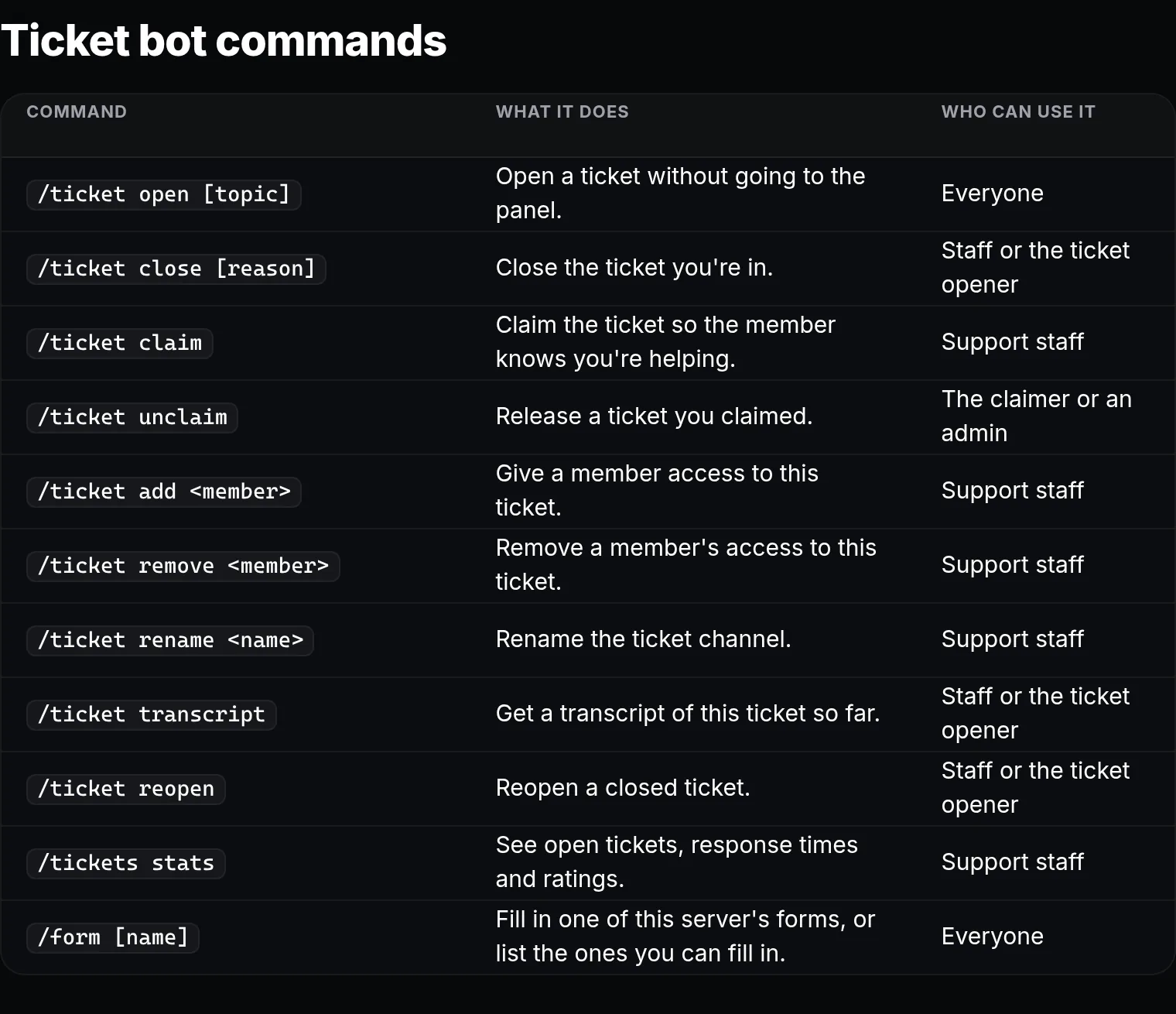
Members open a ticket from the panel or with /ticket open. Staff claim, add people, close, reopen and read transcripts from the same channel. The list after the checklist is the live set, including who can run each command. There is also a full command list.
Common problems
- Nothing happens when a member clicks the panel. Make sure Tickets is turned on; a posted panel does not work while the module is off. Then check that Voinly can create channels in the topic's Category, or threads in its channel. If it still fails, open Settings → Error log in the dashboard. It lists what Voinly couldn't do in your server and how to fix it (see Something isn't working).
- Staff cannot see new tickets. Only the member, the topic's Support roles and Voinly are added. Add your staff role to Support roles on every topic they should handle.
- The bot cannot create the ticket. Voinly needs Manage Channels in the category, or thread permissions in the parent channel, and Manage Roles to set who can see the ticket. Its role must sit above the roles it works with.
- A transcript did not appear. Confirm Send transcripts to points at a staff-only channel Voinly can post in, and that Attach Files is granted. Closed tickets are also listed in the All tickets tab.
- Members are opening too many tickets. Use Open tickets per member, Wait between tickets, and Can't open tickets for roles that abuse them.
- A closed ticket disappeared before staff could reread it. If Closed tickets is set to Delete, switch it to Move to a category or Keep in place, and rely on the transcript. Use Allow reopening if you still need the channel or thread.
A 10-minute checklist
-
Create the staff role and place Voinly's role
A Support role exists, and Voinly's role sits above the roles it works with. It has Manage Channels, Manage Roles and Attach Files, plus Create Private Threads, Manage Threads and Send Messages in Threads if a topic uses threads.
-
Add the channels
A private Tickets category, a staff-only transcripts and log channel, and a public #support channel are in place.
-
Turn Tickets on and set the topics
Tickets is on. The panel has topics with Support roles, and Questions are set where they help.
-
Set claiming, closing and transcripts
Claiming, closing (including Require a reason if you want one) and Send transcripts to are configured.
-
Choose auto-close, support hours and ratings
Auto-close, Support hours and ratings are set if you need them.
-
Post the panel and open a test ticket
The panel is posted, and a test ticket from a non-staff account can be opened, claimed, closed and found in the transcripts channel.
Ticket system guide commands
| Command | What it does | Who can use it |
|---|---|---|
/ticket open [topic] | Open a ticket without going to the panel. | Everyone |
/ticket close [reason] | Close the ticket you're in. | Staff or the ticket opener |
/ticket claim | Claim the ticket so the member knows you're helping. | Support staff |
/ticket unclaim | Release a ticket you claimed. | The claimer or an admin |
/ticket add <member> | Give a member access to this ticket. | Support staff |
/ticket remove <member> | Remove a member's access to this ticket. | Support staff |
/ticket rename <name> | Rename the ticket channel. | Support staff |
/ticket transcript | Get a transcript of this ticket so far. | Staff or the ticket opener |
/ticket reopen | Reopen a closed ticket. | Staff or the ticket opener |
/tickets stats | See open tickets, response times and ratings. | Support staff |
Frequently asked questions
What is a Discord ticket setup?
Where is the ticket tutorial for how to open and close tickets?
What does a ticket tool setup include?
How do I set up a ticket system in Discord?
How do I make tickets in Discord without Ticket Tool?
Is Voinly a Ticket Tool alternative?
Can tickets be threads instead of channels?
Where can I read old tickets?
/ticket transcript gives you a copy of a ticket so far.Why can't my staff see new tickets?
Can staff add someone else to a ticket?
/ticket add gives a member access to the ticket and /ticket remove takes it away. /ticket rename renames the channel.Is it free?
Add Voinly to your server
Every Voinly module is free. The only paid extras are Custom bot and extra AI moderation scans (see pricing). Add it to Discord and set it up from the dashboard.
Add to Discord